If you’re here, you’re likely dealing with a locked Android phone, maybe stuck at the “Google Account Verification” screen or trying to reset FRP (Factory Reset Protection). I’ve been through this exact frustration — and tools like OctoPlus FRP Tool version 2.9.7.0 have become the go-to for many technicians and DIY repairers because they offer real support for modern devices.
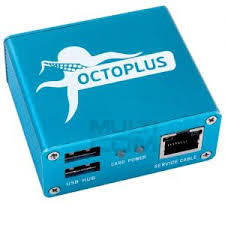
This latest version isn’t just a small update — it adds fresh support for devices many users struggle with, especially OnePlus, Oppo, and Realme phones using Qualcomm chips. Whether you’re a seasoned repair tech or someone fixing a phone on your own, this guide will help you get exactly what you need without guessing.
What OctoPlus FRP Tool 2.9.7.0 Is
The OctoPlus FRP Tool is software used for resetting FRP locks, fixing software issues, and performing certain factory resets on Android devices. It’s especially useful when you’ve lost your Google account details or bought a phone second-hand and can’t get past verification screens.
This tool is part of the larger OctoPlus/Octopus Box software family, used for mobile servicing including flashing, unlocking, and more.
What’s New in Version 2.9.7.0
The standout improvement in 2.9.7.0 is expanded FRP support for specific Qualcomm-based devices. You can now perform Reset FRP for many OnePlus, Oppo, and Realme models with VIP authorization.
Specific improvements include:
- Support for Snapdragon chips: 670, 845, 765G, 888, 8 Gen 2, and more
- Better performance with Qualcomm EDL Autodetect mode
- Expanded device compatibility across popular brands like OnePlus and Realme
These updates matter because FRP protections change with Android updates, and older tools may not recognize newer patch levels. Version 2.9.7.0 gives you more power to handle modern devices.
Who Needs OctoPlus FRP Tool?
You might need this tool if:
- You forgot your Google account after resetting your phone
- You’re repairing phones professionally
- You bought a second-hand phone that’s FRP locked
- Your phone is stuck during setup and won’t let you proceed
Because FRP locks are a security measure, they’re meant to protect user data. But they can also lock you out if you forget credentials, and a tool like OctoPlus helps you move past that, provided you use it responsibly and legally.
Step-By-Step: How to Use OctoPlus 2.9.7.0 for FRP Reset
- Install the tool on your PC (Windows).
- Install Qualcomm USB drivers, so the PC can talk to your phone.
- Connect your device in EDL (Emergency Download) mode or a mode supported by your phone.
- Open OctoPlus and select “Reset FRP”.
- Choose the method — often General Reset FRP Methods → Qualcomm EDL Autodetect.
- Start the process and let the software work its course.
Patience helps here. Some devices take longer because their security measures are tight. But being methodical (correct drivers, stable cable) makes a huge difference.
Why Devices Might Not Be Detected and How to Fix It
A common frustration is when OctoPlus doesn’t detect your phone. This usually happens because:
- Drivers are missing or outdated
- The phone isn’t in the right mode
- USB cable or port issues
Start by reinstalling drivers, trying USB 2.0 ports, and using a high-quality cable. That usually fixes most detection problems.
Is OctoPlus FRP Tool Safe to Use?
Yes, when used correctly. It doesn’t write to storage unless you explicitly perform a reset or repair action. It’s designed for technicians and hobbyists who know what they’re doing.
However, always back up important data before using repair tools. Errors can happen if the process is interrupted.
Alternatives to OctoPlus
There are other FRP reset tools on the market, but OctoPlus stands out because of its broad device support and frequent updates. Some alternatives may require special hardware boxes or extra modules, but OctoPlus often gives you everything in a software interface.
Tips From Real Users
A lot of people share experiences about OctoPlus on forums and threads. Common tips include:
- Always check your device’s chipset before choosing a method
- Use EDL autodetect if you’re unsure of manual mode
- Restart your PC if drivers change mid-setup
- Use the newest version (like 2.9.7.0) for better modern device support
I’ve used this tool myself on older phones with tricky FRP locks — being careful with modes made all the difference.
1. Why isn’t OctoPlus FRP Tool detecting my phone?
Answer: Typically missing drivers or the phone isn’t in EDL or proper boot mode.
Make sure the correct USB drivers are installed and your phone is in the recognized mode (Qualcomm EDL or similar).
2. Can OctoPlus 2.9.7.0 reset FRP on OnePlus devices?
Answer: Yes — OctoPlus 2.9.7.0 adds FRP reset support for many OnePlus models with Qualcomm chips.
The tool lists supported CPUs like Snapdragon 845 and newer, allowing FRP reset in General Reset FRP Methods → Qualcomm EDL Autodetect mode.
3. Is OctoPlus FRP Tool free?
Answer: The base download is free, but certain operations require a license or VIP authorization.
Features like VIP-level FRP resets may need activation or credits.
4. Will OctoPlus work with Oppo and Realme devices?
Answer: Yes, version 2.9.7.0 supports many Oppo and Realme models for FRP reset.
OctoPlus improved compatibility for devices with several Snapdragon variants.
5. What CPUs does OctoPlus 2.9.7.0 support for FRP reset?
Answer: It supports various Qualcomm Snapdragon chips, including 670, 845, 765G, 888, 8 Gen 2, etc.
This means many models across OnePlus, Oppo, and Realme families can be reset.