Most people search for Wallpaper Engine because they’re tired of static wallpapers.
Wallpaper Engine 2.7.4 lets your desktop move. Subtle motion. Live scenes. Looping videos. Interactive designs. It’s not about showing off. It’s about making your screen feel less dead.
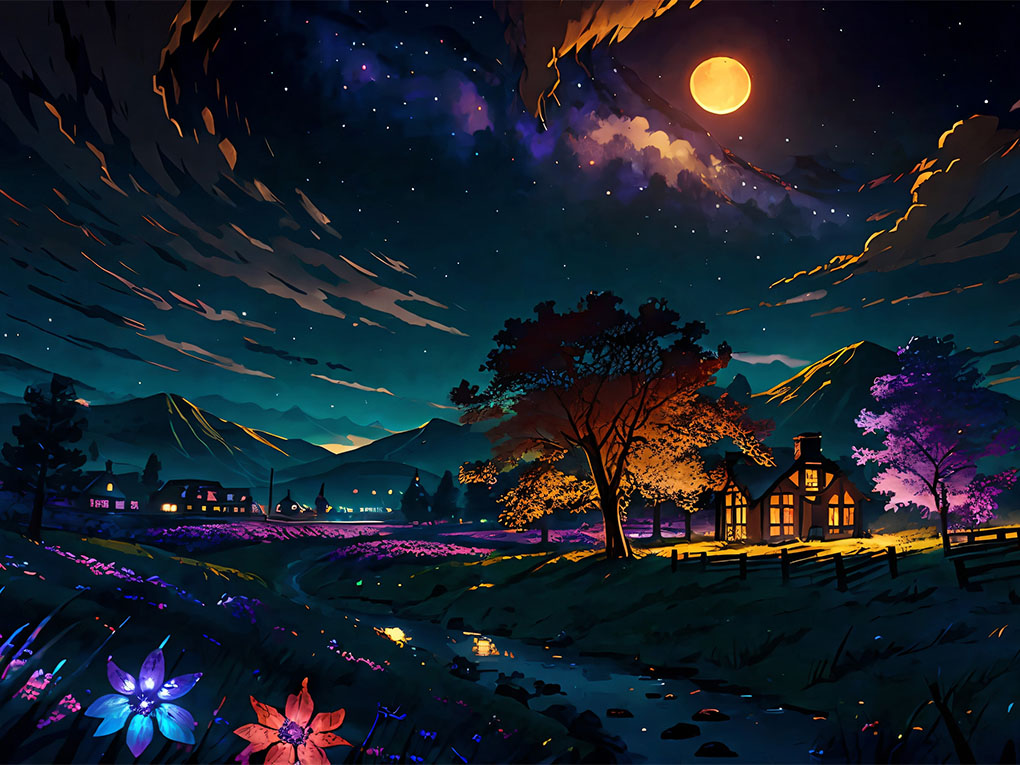
I installed it years ago thinking I’d uninstall it after a week. That didn’t happen. Once your desktop reacts to music or gently moves in the background, static images feel outdated.
How Wallpaper Engine Works in Real Use
Wallpaper Engine runs quietly in the background. You choose a wallpaper from the built-in library or Steam Workshop, set it, and forget about it.
The smart part is how it behaves:
- It pauses when full-screen apps run
- It lowers frame rate during games
- It stops animation when you lock the screen
Wallpaper Engine 2.7.4 improves this behavior even more. Transitions feel smoother, and memory handling feels tighter, especially on multi-monitor setups.
Wallpaper Engine Performance: What Actually Happens
This is where people worry.
On a modern PC, the impact is small. On my system, CPU usage stays low unless I choose very complex wallpapers. GPU usage depends on resolution and effects.
Simple scenes barely register. Heavy 4K video wallpapers will, of course, ask more from your system. That’s expected.
The good news? You control everything. Frame rate, quality, and pause rules are adjustable.
Battery Drain on Laptops: Honest Experience
Laptop users ask this a lot.
Wallpaper Engine can drain battery faster if you leave animations running nonstop. That’s why battery mode exists. When enabled, animations slow down or stop once you unplug.
In daily use, I keep it enabled only when plugged in. On battery, it switches itself off. No micromanaging needed.
Creating Custom Wallpapers Without Stress
You don’t need advanced skills.
Wallpaper Engine supports:
- Videos
- Image sequences
- Simple animations
- Web-based wallpapers using HTML
I’ve seen people turn short clips, rain effects, or minimal loops into wallpapers within minutes. The editor looks technical at first, but basic setups are straightforward.
Why Some Wallpapers Feel “Heavy”
Not all wallpapers are built equally.
High CPU usage usually comes from:
- Too many particle effects
- Unoptimized video loops
- Ultra-high resolution assets
Wallpaper Engine 2.7.4 handles resource limits better, but user choice still matters. If a wallpaper feels heavy, switching to another one usually solves it instantly.
Is Wallpaper Engine Worth Using Long-Term?
If you enjoy desktop customization, yes.
If you prefer minimal setups, maybe not.
Wallpaper Engine doesn’t change how your PC works. It changes how it feels. For gamers, streamers, and anyone who stares at a screen all day, that small change adds comfort.
1.Does Wallpaper Engine slow down your PC?
No, it pauses or reduces activity automatically when apps or games are running.
2.Can Wallpaper Engine drain laptop battery?
Yes, but battery-saving mode lowers motion and stops animations when unplugged.
3.Is Wallpaper Engine safe to use?
Yes, it runs locally and doesn’t access personal files or data.
4.Can you create your own wallpapers?
Yes, you can make animated wallpapers using videos, images, or web-based designs.
5.Why do some wallpapers use more CPU?
Complex animations, high resolution, or poor optimization increase usage.