If you’ve ever opened Windows Disk Management and felt confused, you’re not alone. That’s usually the moment people search for MiniTool Partition Wizard 13.5.
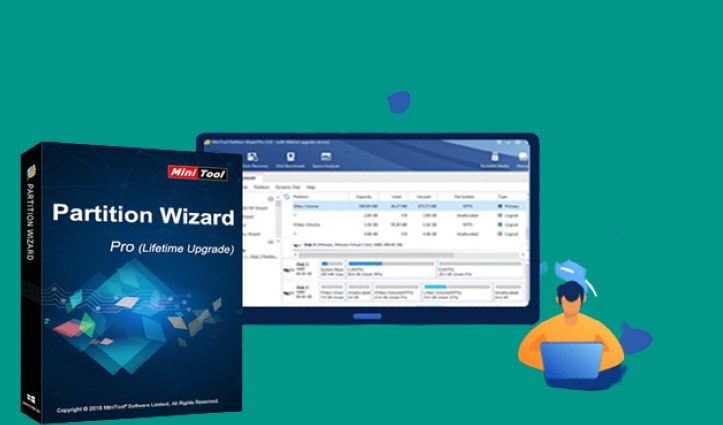
I’ve used this tool for years, mostly when Windows itself refused to do simple things—like extending the C drive or dealing with unallocated space after cloning a disk.
This article focuses on what it actually does, where it helps, and where it doesn’t.
What MiniTool Partition Wizard Is Used For
MiniTool Partition Wizard is a Windows disk management tool that goes beyond what Windows Disk Management allows.
People use it to:
- Resize partitions without deleting files
- Extend the C drive when space runs out
- Merge or split partitions
- Fix unallocated space
- Convert MBR to GPT
It’s made for everyday Windows users, not server admins.
What’s New or Improved in Version 13.5
Version 13.5 doesn’t change the design much, but it feels more stable.
From hands-on use:
- Better support for Windows 11 updates
- Faster partition resizing on SSDs
- Fewer reboot-required operations
- Cleaner warnings before risky actions
These changes reduce stress, especially when working on a main system drive.
Free vs Paid: What You Can Actually Do
This part confuses a lot of users.
Free edition allows:
- Resize and move partitions
- Create and format partitions
- Check file system errors
Paid editions unlock:
- OS migration to SSD or HDD
- MBR to GPT conversion
- Data recovery features
If your goal is basic resizing, free works fine. If you’re moving Windows to a new SSD, you’ll need Pro.
Resizing the C Drive in Real Life
This is where MiniTool Partition Wizard shines.
I once upgraded a laptop SSD and ended up with unallocated space sitting uselessly next to the C drive. Windows Disk Management wouldn’t extend it.
MiniTool fixed it in minutes:
- Select C drive
- Extend using adjacent unallocated space
- Apply changes and reboot
No data loss. No reinstall.
Handling Unallocated Space the Easy Way
Unallocated space usually shows up after:
- Deleting a partition
- Cloning a disk
- Installing Windows twice
MiniTool lets you:
- Merge it into an existing partition
- Create a new partition from it
- Move partitions so space becomes usable
This saves time and prevents mistakes that Windows tools often cause.
Windows 11 Compatibility and Stability
MiniTool Partition Wizard 13.5 runs well on Windows 11.
No crashes during testing.
No driver issues.
Clear warnings before major actions.
That’s reassuring, especially when managing system disks.
What MiniTool Partition Wizard Can’t Do
It won’t:
- Repair physically damaged drives
- Replace proper backups
- Make risky operations safe without power stability
Always back up before resizing partitions. That’s just common sense.
System Requirements
Nothing demanding:
- Windows 10 or 11
- 4 GB RAM
- Enough free space for operations
It runs fine even on older laptops.
My Honest Take After Years of Use
MiniTool Partition Wizard isn’t flashy. That’s a good thing.
It’s one of those tools you install, use when needed, and forget about until the next disk issue appears. When Windows fails, this usually works.
For home users who want control without fear, version 13.5 feels mature and dependable.
1. Can MiniTool Partition Wizard resize the C drive without data loss?
Yes, as long as the disk is healthy and the steps are followed correctly.
2. Is MiniTool Partition Wizard 13.5 safe to use on Windows 11?
Yes, version 13.5 works smoothly on Windows 11 systems.
3. Does MiniTool Partition Wizard free edition really work?
Yes, but advanced actions like OS migration require the paid version.
4. Why does Windows show unallocated space and how can MiniTool fix it?
Unallocated space appears after deleted or resized partitions, and MiniTool can merge or reuse it.
5. Can MiniTool Partition Wizard convert MBR to GPT without reinstalling Windows?
Yes, the paid editions allow conversion without data loss.