If you searched for AirDroid latest version, you’re likely trying to solve a real problem. Maybe your USB cable is missing. Maybe your phone storage is full. Or maybe you just want to reply to messages from your laptop without touching your phone every minute.
That’s where AirDroid 4.3.11.0 fits in.
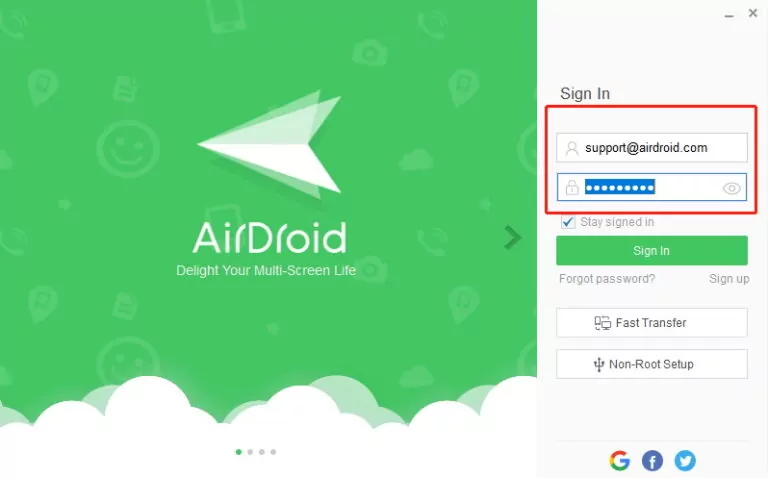
I’ve been using AirDroid on and off for years, mostly when I need quick file transfers or want to mirror my phone screen during work. This version feels smoother, more stable, and less annoying than older builds that used to disconnect randomly.
Let’s talk about what AirDroid actually does, how version 4.3.11.0 behaves in daily use, and the stuff most websites don’t explain clearly.
What AirDroid Is Used For (In Simple Terms)
AirDroid lets you connect your Android phone to a computer wirelessly. Once connected, you can:
- Send files both ways
- View phone notifications on PC
- Mirror your screen
- Control your device remotely
- Manage photos, videos, and documents
No cable required. That alone is why many people install it.
What’s New and Stable in AirDroid 4.3.11.0
AirDroid 4.3.11.0 focuses more on stability and background behavior rather than flashy changes.
From daily use, here’s what stands out:
- Fewer random disconnects
- Better handling of Android battery restrictions
- Faster device discovery on the same network
- Improved screen mirroring response
If you had issues with AirDroid disconnecting every few minutes in older versions, this update feels noticeably calmer.
AirDroid Without WiFi – Does It Really Work?
Yes, but with conditions.
AirDroid can work without internet by:
- Using a local hotspot
- Connecting through the same LAN
File transfer works fine this way. Remote access and cloud features don’t. Many users get confused here, uninstall the app, and blame it unfairly.
If you’re transferring files at home or office, offline mode does the job.
AirDroid Free vs Paid – Real Differences
Free version limits:
- File size caps
- Fewer connected devices
- Limited remote access
Paid version unlocks:
- Unlimited transfers
- More devices
- Full remote control features
If you’re a casual user, free is enough. If you’re managing multiple phones or using it daily, the paid plan saves time fast.
Common Problems Users Face (And How to Fix Them)
AirDroid disconnects:
Disable battery optimization for AirDroid in Android settings.
Device not showing on PC:
Make sure both devices are on the same network and logged into the same account.
Screen mirroring lag:
Lower screen resolution inside AirDroid settings. It helps more than people expect.
Is AirDroid Safe in 2026?
From real-world use, yes.
AirDroid uses encrypted connections and account-based access. Problems usually happen when users leave devices logged in on public computers. That’s a user habit issue, not an app flaw.
If you log out properly and use a password, it’s safe for personal files.
Who Should Use AirDroid?
AirDroid works best for:
- Students sharing files quickly
- Office workers replying to messages on PC
- Remote support helpers
- People tired of cables
If you only transfer files once a month, you might not need it. If you do it daily, AirDroid becomes part of your routine without you noticing.
1.Does AirDroid still work without WiFi?
Yes. AirDroid can transfer files offline using local hotspot or LAN mode, but some features stay limited.
2.Why does AirDroid disconnect so often?
Most disconnections come from battery optimization or background restrictions on Android.
3.Is AirDroid safe for personal files?
Yes, when used with account login and encryption enabled, it’s safe for everyday use.
4.How many devices can I connect with AirDroid free?
The free plan allows limited devices and file size. Paid plans remove these limits.
5.Can I control my Android phone from a PC?
Yes. Screen mirroring and remote control are available with permissions enabled.