If you searched for Miracle Vivo Tool 4.42, you’re likely trying to fix a Vivo phone that won’t cooperate. Maybe it’s stuck on FRP. Maybe it’s dead after a bad flash. Or maybe the tool just refuses to open on your PC.
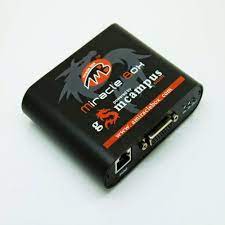
I’ve worked with Miracle tools for years, mostly on stubborn Vivo devices that other software couldn’t touch. Version 4.42 is one of the more stable releases, especially for mid-range and older Vivo phones.
Let’s clear the confusion without the usual fluff.
What Is Miracle Vivo Tool?
Miracle Vivo Tool is a Windows-based utility made for servicing Vivo smartphones. It’s used by mobile technicians and advanced users to handle software-level problems.
Common uses include:
- FRP removal
- Flashing firmware
- Factory reset on locked phones
- Fixing bootloop or dead boot
- Reading device information
Unlike generic Android tools, this one focuses mainly on Vivo chipsets and layouts.
What’s New in Miracle Vivo Tool Version 4.42?
Version 4.42 didn’t change the interface much, but it improved backend handling.
From real use, here’s what stands out:
- Better detection for newer Vivo MTK devices
- Fewer random crashes during FRP operations
- Improved driver handshake on Windows 10 and 11
- Faster read/write process on supported models
It feels smoother than older builds, especially when switching between models.
Supported Vivo Models (Realistic Expectation)
Miracle Vivo Tool 4.42 supports:
- Older Vivo Y series
- Vivo S series
- Many MTK-based Vivo phones
- Selected Qualcomm models (limited functions)
If your phone launched very recently, support may be partial. That’s normal. Tool support usually lags behind phone releases.
How to Use Miracle Vivo Tool 4.42 (Simple Flow)
This is how most technicians actually use it:
- Install drivers first
- Open the tool as administrator
- Select Vivo brand
- Choose function (FRP, reset, flash)
- Power off phone
- Connect using correct key combo
- Wait, don’t touch anything
Rushing steps is where people get stuck.
Miracle Vivo Tool 4.42 Not Opening? Try This
This is one of the most searched problems.
What usually works:
- Disable antivirus temporarily
- Install Visual C++ Redistributables
- Run as administrator
- Use Windows 10 compatibility mode
- Reinstall drivers
On my own setup, antivirus was the real blocker.
Driver Errors in Miracle Vivo Tool
Driver issues show up as:
- Phone not detected
- Stuck at “waiting for device”
- Port not showing
Fix:
- Install MTK USB drivers
- Use original USB cable
- Avoid USB hubs
- Plug directly into motherboard port
Sounds basic, but it solves most cases.
FRP Unlock Using Miracle Vivo Tool 4.42
FRP removal works on many Vivo models, but results vary.
What I’ve seen:
- Android 8–10 works well
- Android 11+ depends on security patch
- New patches may block free methods
If FRP fails, it’s usually not your fault.
Is Miracle Vivo Tool Safe?
Used correctly, yes.
Risk appears when:
- Flashing wrong firmware
- Interrupting process
- Ignoring backup warnings
I’ve never bricked a phone using it properly, but I’ve seen others do it by rushing.
Should You Use Version 4.42 or Update Later?
Stick with 4.42 if:
- Your Vivo model is supported
- Your setup already works
- You mainly do FRP and resets
Update later if:
- New Vivo models aren’t detected
- You need newer security support
Sometimes stable beats new.
1.Why does Miracle Vivo Tool 4.42 not open on Windows 11?
Because driver signature enforcement and missing Visual C++ files block it. Running as admin and installing required drivers fixes it.
2.Is Miracle Vivo Tool 4.42 free or paid?
It’s free to use, but some functions require a Miracle activation or supported box.
3.Why does Miracle Vivo Tool show login failed?
This happens when servers are busy or the tool isn’t updated correctly. Using the correct loader usually solves it.
4.Can Miracle Vivo Tool 4.42 remove FRP on new Vivo models?
Yes, for many models. Results depend on Android version and security patch.
5.Does Miracle Vivo Tool damage data?
Yes, some operations wipe user data. Always back up when possible.