I’m not going to pretend I’m a mobile technician. I’m just someone who’s had a phone get stuck in a bootloop at the worst possible time — like right before an important call. And when that happens, you don’t want a tool that looks complicated. You want something that gets the job done.
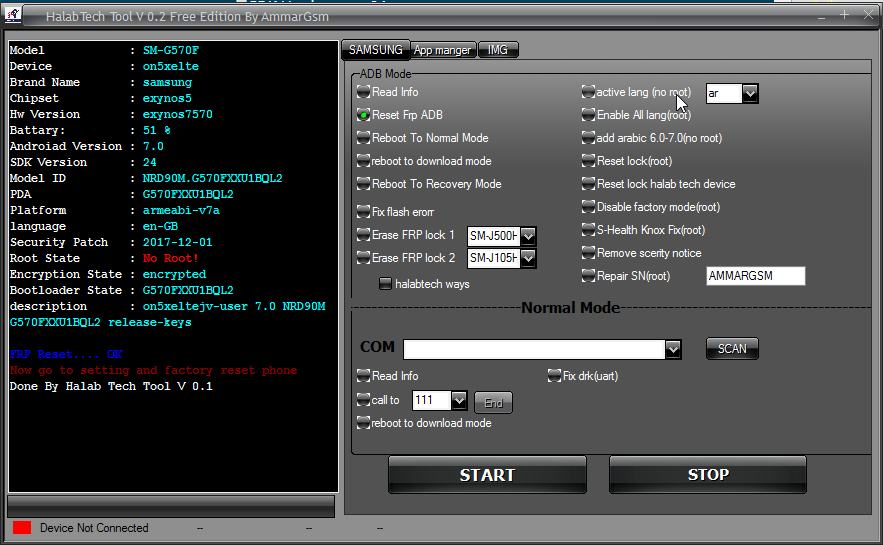
That’s where Halabtech Tool 4.0 comes in. It’s a flashing and repair tool used by a lot of tech users and repair shops, and it’s known for being simple to use even if you’re not a pro.
What Halabtech Tool 4.0 Does
In simple terms, Halabtech Tool helps you:
- Flash firmware
- Fix bootloops
- Remove FRP locks
- Repair Android software issues
The version 4.0 feels more stable than older versions, and the UI is less cluttered, which is a big deal if you’ve ever used other tools that feel like they were made in 2010.
Why People Use Halabtech Tool
Most people come here because their phone is stuck or they accidentally bricked it.
Here are the most common scenarios I’ve seen:
1. Bootloop Fix
Your phone keeps restarting and never loads the home screen.
A lot of times, flashing the correct firmware will fix this.
2. FRP Bypass
If you forget your Google account, you can get locked out.
Halabtech can help bypass FRP in some cases (depending on model).
3. Software Repair
Sometimes the phone works but has software errors, random crashes, or app failures.
Flashing the correct ROM can restore stability.
My Personal Experience With Version 4.0
I tried Halabtech Tool 4.0 on a friend’s phone that was stuck in a bootloop after a failed update. The phone wasn’t being detected at first. I had to install the drivers and put the phone into the correct mode.
Once it was detected, the tool scanned the phone and the flashing process was smooth. It took about 15 minutes and the phone booted normally afterward.
The difference was the interface. It didn’t overwhelm me with too many options. It was clear and straightforward.
How to Use Halabtech Tool 4.0 (Simple Steps)
Here’s the typical process:
- Install drivers
- Connect phone in the correct mode
- Select device and firmware
- Start flashing
- Wait for the process to finish
If the tool gets stuck at 0%, the first thing I do is change the USB cable and port. Most of the time that fixes it.
Common Issues and Fixes (Real Problems Users Face)
Drivers not installed
If your PC doesn’t recognize the phone, it’s almost always a driver issue.
Install the correct drivers and restart your PC.
Phone not detected
Check if the phone is in the correct mode (EDL or Download Mode).
Sometimes you have to press a combination of buttons to enter the mode.
Flashing fails
This can happen if:
- The firmware is wrong
- The phone connection is unstable
- The tool version doesn’t support your phone model
If you see a failure message, don’t keep trying randomly. That’s how you can permanently brick the phone.
What I Like About Halabtech Tool 4.0
- Simple UI
- Works well for common issues
- Faster detection
- Clear process steps
- Great for beginners and repair shops
When Halabtech Tool Might Not Work
If your phone has hardware damage (like a broken motherboard or dead USB port), no software can fix it.
Halabtech Tool is for software issues. It’s not a miracle fix for physical damage.
1. Why is Halabtech tool not detecting my phone?
Answer: Usually because the drivers are missing or the phone isn’t in the correct mode.
Most phones need a specific mode like EDL or Download Mode for detection.
2. Can Halabtech tool fix bootloop issues?
Answer: Yes, but only if the firmware and flashing process match the phone model.
If you flash the wrong firmware, it can make the bootloop worse.
3. Does Halabtech tool support Samsung and Xiaomi phones?
Answer: Yes, but support varies depending on version and phone model.
Some phones require additional setup like a special USB cable or chipset mode.
4. Why does flashing stop at 0%?
Answer: This is usually caused by a bad USB cable, unstable connection, or missing drivers.
Try a different cable and ensure the phone is properly connected.
5. Is Halabtech tool safe for my phone?
Answer: Yes, if you use the correct firmware and follow the steps.
Flashing can be risky if you use the wrong firmware or interrupt the process.