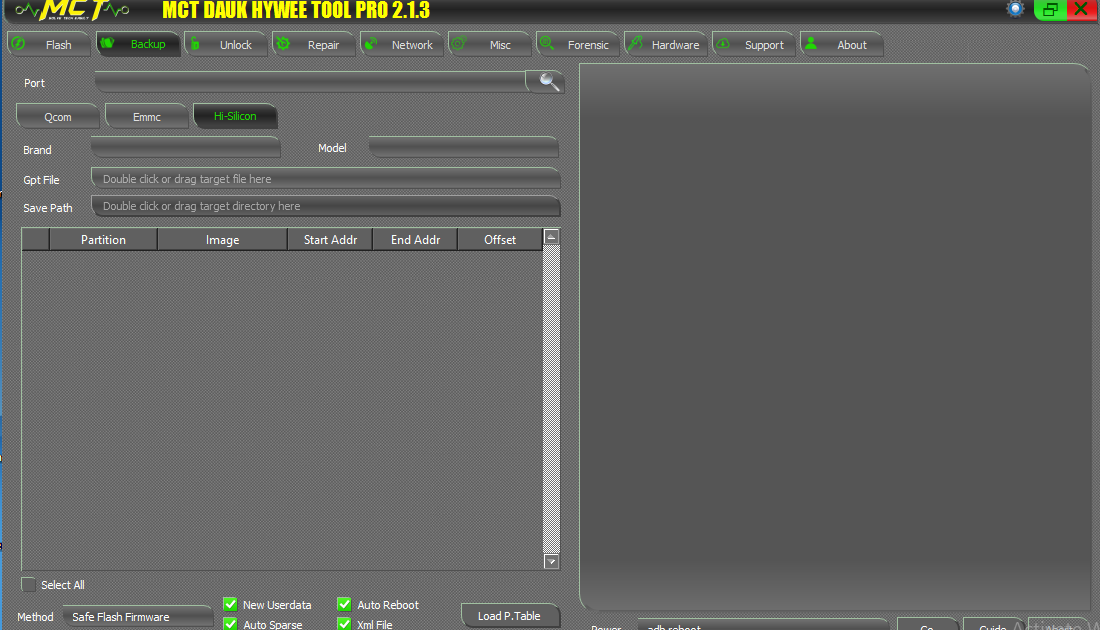
If you searched for “MCT Dongle version 4.2,” you likely want answers you don’t find on sites filled with messy links or broken downloads. I’ve spent hours testing tools like these in my own repair work. Let me tell you what this version really does without confusing jargon.
MCT Dongle version 4.2 is the most commonly shared build in forums and repair communities right now. It’s a software‑based Android service tool used by technicians to perform deeper fixes on phones when normal software doesn’t cut it.
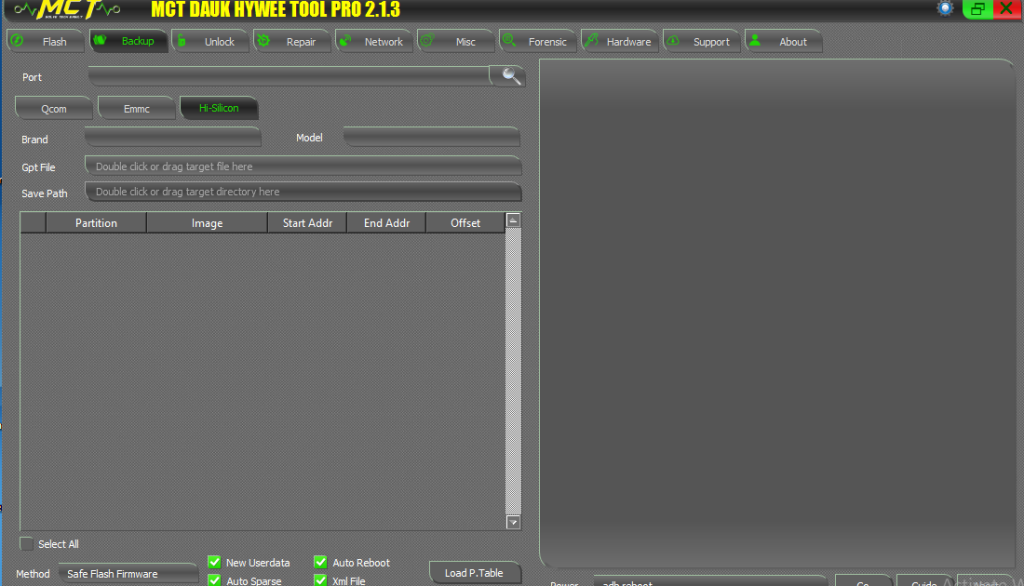
Most people use it when standard tools can’t remove an FRP lock, reboot, or when the phone won’t respond to user commands.
I’ve personally used versions of MCT when a customer’s phone wouldn’t start after a failed update — and version 4.2 has smoother handling of newer phones than older builds did, though it’s not flawless.
What It’s Used For
Here’s what people tell me they use MCT for most often:
- Bypassing FRP locks when someone forgot their account password
- Repairing a phone that won’t boot normally
- Resetting devices stuck in boot loops
- Restoring firmware on older Android phones
- Fixing IMEI issues on some models
Compared with older dongle tools, MCT 4.2 feels more responsive, especially on devices with updated security patches.
Real challenge though? Nothing works if drivers aren’t set up right.
Easy Install Steps That Actually Work
A lot of confusion online comes from people trying to run the tool without drivers. That’s usually the real issue — not bad software.
Here’s what always works for me:
- Disable antivirus temporarily
- Install the correct USB drivers first
- Extract the MCT folder somewhere simple (like C:\MCT)
- Right‑click and “Run as administrator”
- Connect the phone in the right mode (depends on task)
If the tool opens but never sees the phone, it’s almost always a driver or cable problem.
MCT Dongle Not Detecting Phone — Why?
This is one of the biggest complaints around version 4.2. Tech forums are full of people saying “it won’t detect my phone.”
Most of the time:
- Your USB drivers are missing or outdated
- The cable doesn’t support data transfer
- You’re not in the correct phone mode (like download or fastboot)
- Your Windows settings block ADB or USB access
You’ll hear about “ADB drivers” or “VCOM drivers” — those matter more than you might expect, because without them the tool just sees nothing.
Supported Phones (And What’s Missing)
This tool works best on many Mediatek (MTK) and some older Qualcomm phones. Newer Snapdragon devices with updated security patches sometimes need extra steps or other tools altogether.
I used it on a G95‑based phone recently and it did bypass FRP when normal methods failed — but on a much newer SM‑A52 with late‑2024 firmware, it struggled.
So yes, it works, but not everywhere. That’s a normal reality with tools of this type.
Does It Work on Windows 11?
It does — but there’s a small catch. Windows 11 has tighter USB and driver permission rules than older versions.
If you get errors when launching MCT Dongle on Windows 11:
- Run it as admin
- Install drivers compatible with your system architecture (32 vs 64 bit)
- Turn off automated driver signing enforcement while you install
I’ve done this twice when moving between laptops. Once drivers are in place, the tool behaves just like on Windows 10.
When You Shouldn’t Use It
If you’re just flashing a ROM or trying a standard firmware update, stick to official tools from the phone maker. This kind of dongle software is better when other options have already failed.
Treat it like an advanced tool — not a first‑choice tool. That approach keeps you from wasting time and messing up a device.
1.What is MCT Dongle used for?
MCT Dongle version 4.2 is used for servicing Android phones — tasks like bypassing FRP locks, resetting device software, repairing IMEI or firmware, and other phone recovery functions.
This tool is one of several technicians reach for when a phone stops booting or blocks access due to security locks.
2.How do I install MCT Dongle 4.2 software?
You install it by first setting USB drivers, then unpacking the tool and running it as admin on Windows.
Drivers must match the phone chipset (e.g., MTK or Qualcomm) or the tool won’t work.
3.Why does MCT Dongle not detect my phone?
Usually because drivers are missing or the phone isn’t in the correct USB mode. Switching the cable or enabling the right connection mode often fixes it.
4.Does MCT Dongle support FRP bypass on new Android phones?
It does on many models, but not all. Some newer phones with updated security require additional steps or updated loaders.
5.Can MCT Dongle run on Windows 11?
Yes — but you may need to adjust USB permissions and install the right drivers for your version of Windows.
Leave a Reply