If you searched for Miracle FRP Tool 2.03, you’re likely dealing with a phone stuck at the Google account screen after a reset. This happens a lot in repair shops, especially when customers forget account details or buy used devices.
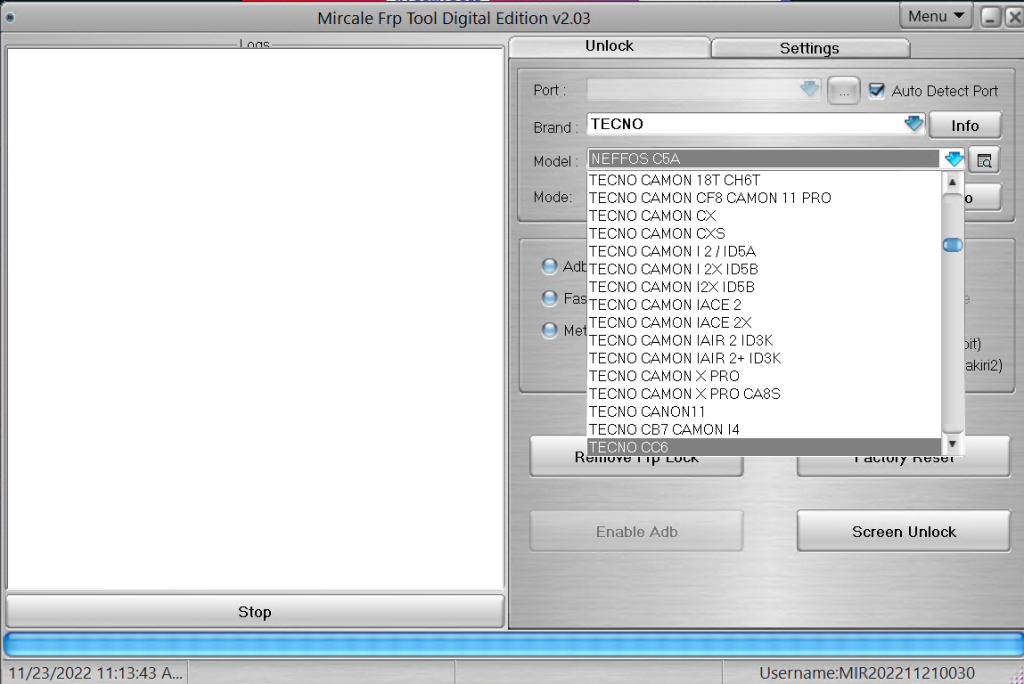
I’ve seen this tool used on shop PCs for years. Some versions were unstable. Some worked quietly in the background and saved hours. Version 2.03 sits somewhere in the middle, and that’s what we’ll talk about here.
No hype. Just real use.
What Miracle FRP Tool 2.03 Actually Does
Miracle FRP Tool 2.03 is a Windows-based Android servicing utility designed to assist technicians during FRP-related repair jobs. It interacts with supported devices through USB and works alongside proper drivers.
It’s commonly used for:
- Handling FRP lock situations after reset
- Repair tasks during servicing
- Preparing used devices for resale
- Shop-level troubleshooting
This tool isn’t meant for casual phone users. It’s for people who already handle Android devices regularly.
How Miracle FRP Tool Works in Practice
In real shop use, the flow is simple:
- Install drivers
- Connect phone in the required mode
- Launch the tool
- Perform the intended servicing task
Most failures don’t come from the software itself. They come from skipped steps.
I’ve watched technicians blame the tool when the real issue was a loose cable or wrong USB mode.
What Version 2.03 Changed
Version 2.03 didn’t try to reinvent anything. That’s why many shops kept it installed.
From hands-on experience:
- Faster launch time
- Fewer random crashes
- Better handling of older Android models
- Cleaner interface without clutter
Later builds added more options but also added confusion. This one stayed simple.
Miracle FRP Tool 2.03 Windows Support (0 KD Explained)
Supported systems:
- Windows 7 (64-bit)
- Windows 8 / 8.1
- Windows 10
- Windows 11
For smoother operation:
- Run as administrator
- Avoid USB hubs
- Use original or short cables
These steps fix most detection complaints.
Common Problems and Practical Fixes
Tool Not Opening
This shows up often on fresh systems.
Common reasons:
- Missing Visual C++ files
- Antivirus blocking the folder
- Corrupted extraction
Fix:
- Re-extract the files
- Add folder to antivirus exclusions
- Restart once before retrying
Phone Not Detected
Seen daily in repair shops.
Causes:
- Wrong USB mode
- Missing drivers
- Poor cable quality
Fix:
- Reinstall drivers
- Change USB port
- Try another cable
Simple steps, big difference.
Updating From Older Versions
Version 2.03 works fine as a clean install.
From experience:
- Remove older builds
- Restart system
- Install fresh
Mixing versions often causes errors.
Is Miracle FRP Tool 2.03 Safe?
Used correctly, yes.
It doesn’t:
- Run background services
- Modify system files randomly
- Push ads
Most reported problems come from:
- Modified packages
- Unknown download sites
- Poor system maintenance
Stick to clean sources and you’ll avoid headaches.
Who Should Still Use Version 2.03?
This version makes sense if:
- You work on older Android devices
- You want a stable, simple interface
- You don’t need experimental features
If you work only on the newest models, newer builds may suit you better.
Personal Observation From Repair Shops
I’ve seen technicians keep version 2.03 installed even when newer builds were available. Why? Because it behaved predictably. When customers are waiting, predictability matters more than fancy options.
That’s why this version still gets searched.
Q1: Does Miracle FRP Tool 2.03 still work on newer Android phones?
Yes, it works on many models, but success depends on Android version and security patch level.
Q2: Why does Miracle FRP Tool 2.03 fail to detect my phone?
Most of the time, missing USB drivers or incorrect connection mode cause this.
Q3: Can Miracle FRP Tool 2.03 run on Windows 11?
Yes, but driver installation must be done carefully with administrator access.
Q4: Is Miracle FRP Tool 2.03 safe for regular repair shop use?
Yes, when used in proper servicing scenarios and installed from trusted sources.