If you’re here, you probably want to know whether Topaz Video Enhance AI version 6.2.2 is worth it, and how to use it without wasting hours of processing time. I’ve used this tool for upscaling old footage, restoring family videos, and improving low-res clips for YouTube. And I can tell you, the difference between a good result and a wasted render usually comes down to settings and patience.
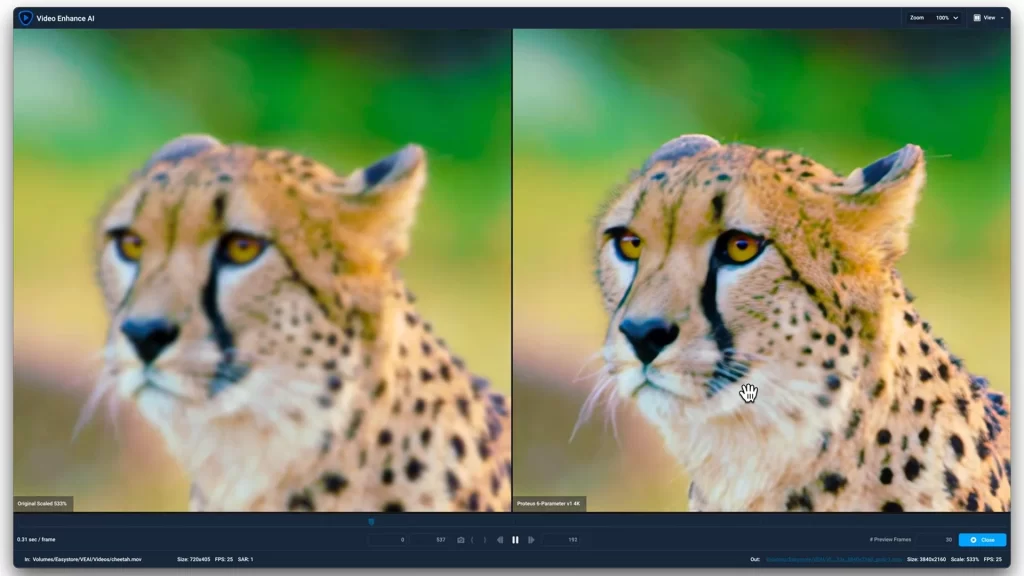
Topaz Video Enhance AI is one of the best video upscalers because it actually learns how to reconstruct details, rather than just stretching pixels. But it’s also a tool that can get you into trouble fast if you don’t know what you’re doing. That’s why I’m going to walk you through the real stuff: what’s new in 6.2.2, what settings work, and how to avoid common mistakes.
What’s New in Topaz Video Enhance AI 6.2.2?
Version 6.2.2 isn’t a huge overhaul, but it’s the kind of update that matters if you use the software daily. The improvements are mostly about:
- Stability (fewer crashes, fewer freezing issues)
- Better GPU usage (faster processing on supported cards)
- Slightly improved output quality on low-res footage
I’ve noticed that sometimes, even a small update makes a big difference when you’re working with older clips. For example, I once tried upscaling a 480p clip from an old camcorder. In earlier versions, the result looked soft and slightly noisy. In 6.2.2, the same clip came out cleaner and sharper, especially around edges like hair and text.
Real Settings That Work (My Go-To Setup)
If you want fast results that still look good, here’s the setup I use most:
Best settings for 1080p → 4K
- AI model: Gaia HQ
- Output: 4K
- Noise reduction: Only if the original video is noisy
- Sharpening: Low to medium
- GPU acceleration: Enabled
- Output format: H.265 (HEVC)
This combination gives you a clean upscale without making the video look “fake” or overly sharp. The biggest mistake people make is turning sharpening too high. It creates that weird “plastic” look that screams AI.
Why It Runs Slow (and How to Fix It)
One of the biggest complaints I see in forums is: “Why is my render taking forever?”
The answer is usually one of these:
1. GPU is underpowered
This software is GPU-heavy. If your GPU is older or has limited VRAM, it will struggle.
2. Wrong settings
If you’re using a high-end model like “Artemis HQ” on a long clip, it will take ages.
3. Too high output resolution
Upscaling 480p to 8K is possible, but it’s a huge task. Don’t do it unless you really need it.
4. Background apps
If your computer is busy, Topaz will slow down.
Common Mistakes That Waste Hours
Mistake #1: Choosing the wrong model
Not every video needs the same model.
For example:
- Gaia HQ is great for general upscaling
- Artemis HQ is better for heavy noise removal
- Proteus is good for film footage
If you pick the wrong one, you’ll waste time and get worse results.
Mistake #2: Turning on noise reduction when it’s not needed
Noise reduction can blur detail. If your video is already clean, skip it.
Mistake #3: Using too high output
Upscaling to 8K when your final platform is YouTube is overkill.
Most people only need 4K.
How to Export Without Huge Files
If your output is huge, you can reduce it without losing much quality:
- Choose H.265 (HEVC)
- Lower bitrate slightly
- Use “Fast” preset if you don’t need perfect quality
In my experience, this cuts file size dramatically while still keeping the video sharp.
Who Should Use Topaz Video Enhance AI 6.2.2?
This tool is perfect for:
- Restoring old footage
- Upscaling gameplay clips
- Making old movies look better
- Creating YouTube content from old videos
It’s not great if you’re on a weak PC or you need fast results. In that case, a simpler upscaler might be better.
My Final Thought (Real Talk)
If you have the hardware, Topaz Video Enhance AI is one of the best tools for turning low-res video into something usable. Version 6.2.2 doesn’t dramatically change the software, but it improves the stability and output enough that you’ll notice it if you work with video often.
Just remember: the best results come from using the right model, the right output settings, and a bit of patience.
1. “What’s new in Topaz Video Enhance AI 6.2.2?”
Answer: It adds stability updates, improved GPU performance, and better output quality for low-res footage.
2. “Why is Topaz Video Enhance AI 6.2.2 so slow?”
Answer: Slow speed usually means your GPU is underpowered or your settings are too heavy.
3. “What settings should I use for 1080p to 4K upscaling?”
Answer: Use the “Gaia HQ” model, set output to 4K, and enable noise reduction only if needed.
4. “Why does my output look blurry after upscaling?”
Answer: That usually means the wrong AI model is selected or sharpening is turned off.
5. “How to reduce file size after using Topaz Video Enhance AI?”
Answer: Export in H.265 (HEVC) with a reasonable bitrate, and use the “Fast” preset if quality is not the main concern.