When you type “Your Uninstaller Pro 7.5.2” into search, you’re probably trying to find a tool that does a better job than Windows’ built‑in uninstall feature. Most of us have installed apps only to find leftover folders, registry entries, or even hidden settings still hanging around afterward.
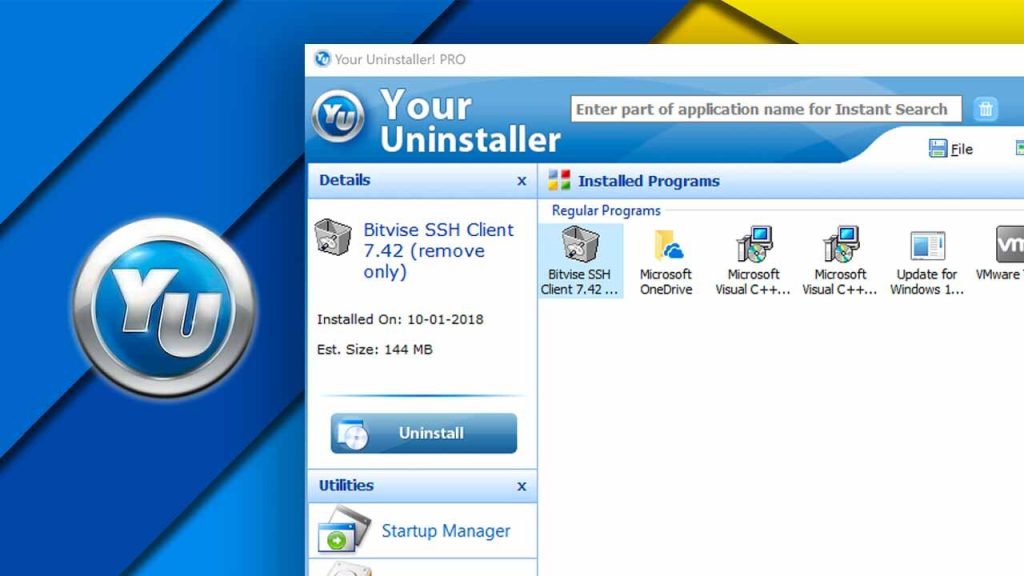
For many years, Your Uninstaller! PRO earned a reputation as a simple tool that tries to fix that. The version most people talk about today online — including in community threads and software forums — is 7.5.2 (even though the last officially documented build from Softpedia shows version 7.5.2014.03).
That gap in official release notes has left a lot of community sites and download mirrors labeling recent builds as 7.5.2, and many users search with that exact phrase.
What It Does (Plain English)
At its core, Your Uninstaller Pro is an uninstaller tool that digs deeper than Windows alone. Most people start by clicking “Uninstall” in the Control Panel or Settings app when they want to remove software. But that common method often leaves:
- leftover files in the Program Files folder
- registry entries tied to uninstalled apps
- startup items that no longer do anything
Your Uninstaller Pro tries to catch all of that. After launching an uninstall, it runs a deep scan for leftovers and helps you decide what to delete.
From my experience helping friends clean up old Windows machines, that leftover cleanup makes a noticeable difference — especially on systems that have seen years of installs and uninstalls.
How to Uninstall Software With It
When you open the app, you’re greeted with a list of installed programs and a few extra tools. Removing an app typically follows these steps:
- Select the program you want gone from the list.
- Choose a removal mode:
- Safe (less aggressive)
- Normal (standard)
- Super (most thorough)
- Let the tool run the built‑in uninstall routine for that app.
- When that finishes, the tool automatically scans for leftover files and registry keys.
- Review leftovers and confirm deletion.
If you pick Super Mode, the scan runs longer but usually finds more leftover traces.
This workflow feels a lot safer than manual cleanup because you get preview lists and can decide what to remove.
Extra Tools That People Ask About
Besides uninstalling, Your Uninstaller Pro includes a few extras:
- Startup Manager: lets you disable apps that start with Windows
- Disk Cleaner: finds temporary files and frees up space
- File Shredder: permanently deletes selected files
- Traces Eraser: clears browser leftovers and temp files
These help a bit with daily PC maintenance, though they’re not as advanced as dedicated tools like CCleaner.
Real‑User Scenarios
A friend of mine once brought over a slow Windows laptop that had been upgraded through a few versions of Windows 10 and 11. Running just the Control Panel uninstall left behind many orphaned registry keys and leftover folders. Using an uninstaller tool with deep scanning, including a Super Mode, found dozens of leftover entries in hidden system folders — and after cleanup, the machine felt a bit snappier and cleaner.
It isn’t magic, but it does make a difference when the normal uninstall tools don’t cut it.
Why People Still Search for 7.5.2
Even though the official documented version is older, many users have seen “7.5.2” pop up on community download sites and in search query logs. That’s usually because download mirrors and third‑party sites label available builds as 7.5.2 — even if the core code is from the same old official release.
That’s why so many people ask for 7.5.2 specifically: it’s a version tag that stuck around in user searches and forums.
Q1: What is Your Uninstaller Pro 7.5.2 used for?
Answer: It’s a Windows utility designed to remove installed programs and all their leftover files and registry entries so that nothing remains behind after removal.
Unlike Windows’ built‑in “Uninstall a program,” this tool goes deeper to scan for leftovers after the normal uninstaller runs.
Q2: How do I use Your Uninstaller Pro to remove stubborn software?
Answer: You open the program, find the app you want to remove, choose a removal mode (Safe, Normal, or Super), run the uninstallation, and then let the tool scan and delete leftover files.
The Super Mode tries to clean up all related traces on your PC.
Q3: Can Your Uninstaller Pro clean leftover registry entries?
Answer: Yes. After the standard uninstall process, it scans the Windows Registry and disk for leftover entries and files that normal uninstallers often miss.
This helps prevent clutter over time.
Q4: Does Your Uninstaller Pro 7.5.2 have extra tools?
Answer: Yes. It includes tools like a Startup Manager, a Disk Cleaner, a file‑shredder tool, and a basic traces eraser for temporary files.
These aren’t the most powerful in the market, but they help daily maintenance for typical users.
Q5: Is Your Uninstaller Pro safe to use on Windows 10/11?
Answer: Using the official installer from a trusted source and keeping backups before deep removal is generally safe. But always be cautious about third‑party download sites offering “full key” versions without developer authorization.