Record, clean and export audio with free editors such as Audacity and Ocenaudio, with practical tips for voice and podcasts.
Sound is half of every video, and the only part of a podcast. Whether you record a voice over, clean up an interview, edit music or make ringtones, you need an audio editor that is reliable and easy to understand.
The good news is that the best free audio editors are very capable. Some of them have been used by teachers, podcasters and musicians for many years, and they cost nothing.
This guide compares the leading free audio editors for Windows PC, explains the basic techniques that make recordings sound professional and shows how to avoid the most common mistakes.
What an audio editor does
An audio editor lets you record sound, cut and arrange sections, remove noise, change volume and apply effects. Most programs show the sound as a waveform that you can zoom and select.
Simple editors work on one file at a time, which is ideal for voice recordings. Multitrack editors let you layer voice, music and effects, which suits podcasts and video soundtracks.
Choose according to your project. A student recording a lecture does not need a full music studio, while a podcaster benefits from multiple tracks.
Audacity
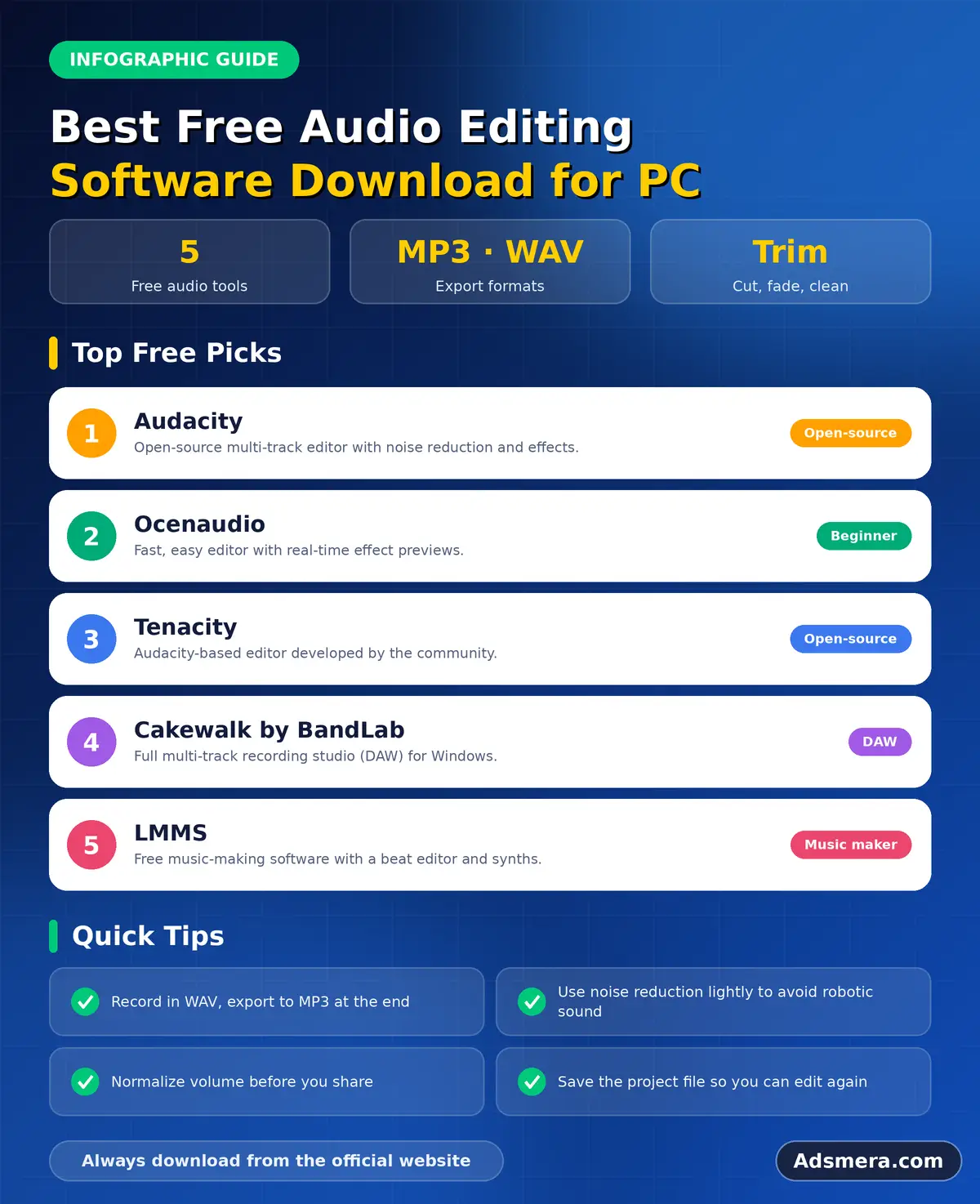
Audacity is the best known free audio editor. It is open source, runs on Windows, and offers recording, multitrack editing, many effects and support for popular formats.
It handles noise reduction, equalisation, compression, fades and plugins. The interface looks dated, but it is logical once you learn the main tools. There is a huge amount of free help and tutorials.
Download it from the official website only. For many users, Audacity alone covers every audio need.
Ocenaudio
Ocenaudio is a free editor with a cleaner, more modern interface. It is fast, light and works well with large files.
Its real time effects preview lets you hear changes before you apply them, which beginners find very friendly. It supports many formats and includes useful analysis tools.
It is single track, so it is best for cleaning and trimming one recording at a time rather than building complex mixes.
Tenacity
Tenacity is a community fork of Audacity that keeps a similar workflow with some changes in philosophy and interface. Users who want an alternative project may choose it.
Check the current state of the project on its official site before you rely on it, because community forks can change over time. If it fits your needs, you get a familiar and capable editor.
For most beginners, Audacity or Ocenaudio will be the easiest starting point.
LMMS and music production
If you want to create music rather than edit recordings, LMMS is a free open source tool for composing with instruments, samples and effects.
It is a different kind of program, closer to a digital audio workstation. You arrange patterns, use synthesisers and mix your song.
Learning takes time, but free tutorials are plentiful. For editing speech, you do not need it.
Choose a recording setup
Your recording quality matters more than your editing software. A decent USB microphone, placed close to your mouth, will beat an expensive microphone used badly.
Record in a quiet room with soft surfaces such as curtains, carpets and sofas. They reduce echo. Avoid recording near computer fans, windows or fridges.
Use headphones while you record, so that the microphone does not pick up sound from your speakers.
Set the right levels
Record loud enough to be clear but not so loud that the signal clips. Clipping creates harsh distortion that cannot be repaired.
Watch the level meter. Aim for peaks between minus twelve and minus six decibels while you speak naturally. A short test recording helps you adjust the input gain.
Leave a few seconds of room tone at the start. You will need it for noise reduction.
Reduce background noise
Noise reduction is one of the most useful tools. In Audacity, select a short section of pure background noise and choose Noise Reduction to capture the profile. Then select the whole recording and apply the effect.
Use moderate settings. Too much reduction makes the voice sound watery and robotic. It is better to leave a little noise than to damage the speech.
For hum from electrical equipment, a notch filter or a high pass filter can help.
Equalisation basics
Equalisation, or EQ, adjusts the balance of low, middle and high frequencies. For voices, a gentle high pass filter around eighty hertz removes rumble without changing the character of the speech.
A small boost in the presence range can improve clarity, while reducing harsh frequencies can make a recording easier to listen to. Make small changes and listen on different speakers.
Do not overdo it. Natural sound usually beats heavy processing.
Compression and loudness
Compression reduces the difference between loud and quiet parts, which makes speech easier to hear. Use it gently, with a low ratio, and adjust until the volume sounds steady.
Loudness matters for sharing. Many podcasters aim for about minus sixteen LUFS for stereo shows, and streaming services have their own targets for music. Audacity includes a loudness normalisation effect.
Check your result on headphones and on a phone speaker.
Cut, fade and arrange
Remove long pauses, coughs and mistakes by selecting and deleting them. Leave a natural amount of silence so the speech does not sound rushed.
Add short fades at the start and end of clips to avoid clicks. When you join sections, use a tiny crossfade for a smooth transition.
For music beds under speech, lower the volume and fade it in and out. The voice must always stay clear.
Choose the right file format
WAV and FLAC keep full quality. Use them for recording and editing. MP3 and AAC are smaller and suitable for sharing.
For speech, an MP3 at around 128 kilobits per second is often enough, while music sounds better at higher bitrates. A sample rate of 44.1 or 48 kilohertz is standard.
Keep your original recording safe. You can always create a new export, but you cannot restore quality that you threw away.
Plugins and extra effects
Audacity supports plugins that add more effects and tools. Free VST plugins can add equalisers, compressors and reverbs.
Install only a few plugins from trusted developers. Too many plugins slow the program and can cause crashes.
Start by learning the built in effects. They are enough for most work.
Work with video and screen recordings
Many people need to fix the sound of a video. Extract the audio, edit it and put it back, or use the editing features in your video editor.
Our guide to free screen recording software for Windows PC explains how to record clean audio from the start, and our article on free photo editing software for PC is a good next step if you also create visuals.
Always keep the original video untouched until you are satisfied with the result.
Record a voice over step by step
Write a short script or outline before you record. Reading from notes keeps your speech steady and cuts the number of mistakes. Place the microphone about a hand width from your mouth, slightly to one side to reduce harsh breath sounds.
Record a few seconds of silence first, then speak at a natural pace. If you make a mistake, pause, then repeat the sentence from the start. This leaves clear markers in the waveform, so you can find and delete the error quickly during editing.
An editing workflow for podcasts
Start by saving a copy of the raw recording. Normalise the volume, remove obvious mistakes, then apply noise reduction to the whole track. Adjust equalisation and light compression, and finish with loudness normalisation.
Add the intro, the outro and any music on separate tracks. Listen to the full episode once with headphones, and again on a phone speaker. Export a master file in WAV or FLAC and then make an MP3 for publishing. Keeping the same order each time makes episodes sound consistent.
Fix common audio problems
Clicks and pops often come from cuts made in the middle of a wave. Zoom in and cut at a zero crossing, or add a very short fade. Echo is harder to remove, so prevent it with soft surfaces around the microphone.
Hiss can be reduced with noise reduction, but heavy hiss means the recording level was too low. Hum from power equipment may need a filter. Distortion from clipping cannot be fixed, so record again with a lower input level. Learning to prevent problems saves more time than any effect.
Convert and compress audio files
Editors can convert between formats, but be careful about quality. Converting from MP3 to WAV does not restore lost detail, and converting from one lossy format to another loses quality each time. Always edit from the original recording.
For small files, choose AAC or MP3 at a bitrate that suits the content. Speech sounds fine at lower bitrates, while music needs more. Test a short clip first and listen on the devices your audience will use.
Music and sound effects: respect the licence
Adding background music makes projects feel finished, but you must have permission. Use music that you created, that you licensed or that comes from a library with a clear free licence. Keep a record of the licence and any credit text.
Read the terms for commercial use, because free for personal use does not cover a monetised channel. If a track requires credit, add it to your description. Using unlicensed music can lead to takedowns and lost revenue.
A simple learning path
Begin with recording and trimming a short voice clip. Next learn noise reduction and normalisation. Then practise equalisation and compression, and finally multitrack editing with music.
Spend a week on each step and repeat it on real projects. The official Audacity manual and community tutorials are free and accurate. Steady practice beats trying to learn every feature at once.
Learn the shortcuts and presets
Audio editors have keyboard shortcuts for play, stop, split, delete and zoom. Learning a handful makes editing much faster and less tiring. Most programs also let you save effect chains as presets, so you can apply your favourite noise reduction and equalisation settings with a single click.
Create one preset for voice recordings and another for music. Name them clearly, and review them every few months. A consistent chain of effects gives all your recordings the same professional sound.
Back up your audio projects
Audio files are large, and a lost recording often cannot be repeated. Keep the raw recording, the project file and the final export in one clearly named folder. Copy that folder to an external drive after each session.
For important projects, keep a second copy away from your computer. Our guide to free PC backup software explains simple ways to automate this, so that a crash or a mistake never costs you a day of work.
Check your work on different devices
Before you publish or share a recording, listen to it on at least two different devices, for example good headphones and a phone speaker. Problems that hide on one set of speakers often appear on another. If the voice is clear and the volume feels steady on both, you can be confident that most listeners will have a good experience.
Keep reading in this series
This guide belongs to our free PC software series. For the big picture, start with the complete guide to the best free PC software for Windows 11.
These related guides continue the topic:
- free photo editing software for PC: GIMP, Krita, Paint.NET and raw editors compared.
- free screen recording software for Windows PC: compare the Game Bar, OBS Studio, ShareX and more.
- free note taking software for PC: choose a notes app that fits your workflow.
Final thoughts
Free audio editors are excellent. Audacity is the all rounder, Ocenaudio is quick and friendly, and LMMS suits music creators.
Spend time on your recording setup, use gentle noise reduction and keep your edits natural. With practice, even simple equipment can produce clear, professional sound.
FAQ
What is the best free audio editing software for PC?
Audacity is the best known and most complete free editor. Ocenaudio is easier and faster for single recordings.
How can I remove background noise for free?
Use the noise reduction effect in Audacity or Ocenaudio. Capture a noise profile from a silent section, then apply moderate reduction.
Which format should I record in?
Record in WAV or FLAC for full quality, and export to MP3 or AAC for sharing.
Do I need an expensive microphone?
No. A decent USB microphone, used close to your mouth in a quiet room, gives very good results.
Can I edit music with a free editor?
Yes. Audacity edits recorded music, and LMMS lets you compose music with instruments and samples.
audio, editing, software, download