Free up disk space safely with Storage Sense, Disk Cleanup and free analysers, and learn what you should never delete.
A full disk makes a computer unpleasant to use. Updates fail, programs refuse to install, and Windows slows down because it has no room to work. The usual reaction is to hunt for a free cleaner and hope for the best.
A better approach is to understand where the space went and to free it safely. Windows has capable tools of its own, and a few free programs make the job quicker and clearer.
This guide explains how disk cleanup works, which tools are worth using, what you can safely delete and what you should leave alone.
Why free space matters
Windows uses free space for temporary files, updates, the page file and System Restore. When the drive is nearly full, these functions suffer.
SSDs also need room to work efficiently. A drive that is almost full can become slower, because it has fewer empty blocks to write to.
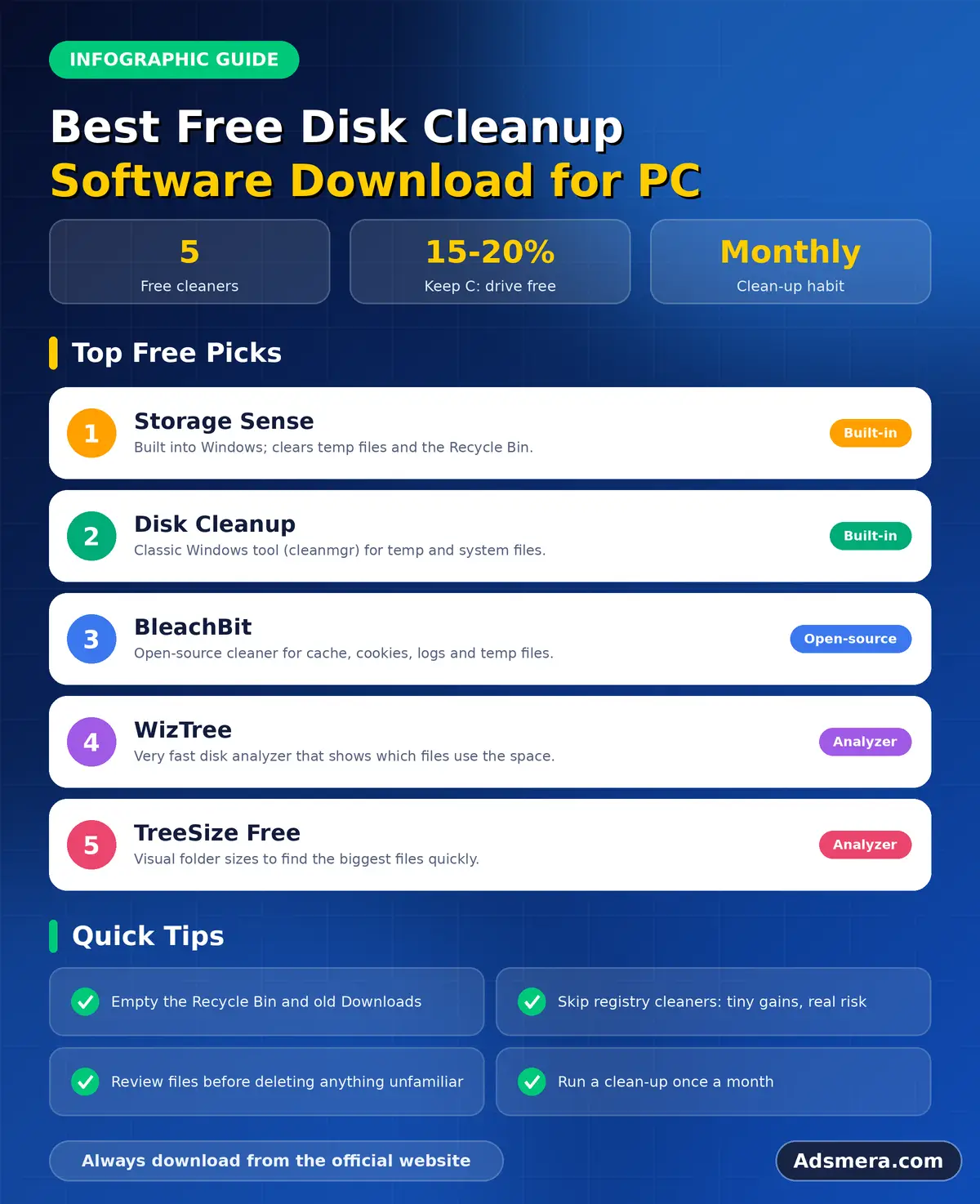
As a rule, try to keep at least ten to twenty percent of the drive free. That gives Windows and your programs room to breathe.
First, see what is using the space
Never delete blindly. Start by looking at the numbers.
Open Settings, then System, then Storage. Windows shows categories such as apps, temporary files, documents, pictures and other items. Click a category to see details.
For a more visual view, free analysers such as WizTree, TreeSize Free and WinDirStat draw maps of your drive. Large blocks show you exactly where the space went.
Turn on Storage Sense
Storage Sense is the built in automatic cleaner. It deletes temporary files, empties the recycle bin on a schedule and can remove files from the Downloads folder after a set number of days.
Turn it on in the Storage settings, and review the schedule. Be careful with the Downloads option if you keep important files there.
This simple switch handles most routine clutter, and it is safe because Microsoft designed it for exactly this purpose.
Use Disk Cleanup for extra items
The older Disk Cleanup tool still exists. Search for it in the Start menu and select your system drive.
Click Clean up system files to include items such as old Windows update files, the previous Windows installation and delivery optimisation files.
After a major Windows upgrade, the Windows.old folder can use many gigabytes. If you are happy with the new version, deleting it frees a lot of space.
Temporary files and caches
Temporary files collect over time. Programs create them while working and often forget to remove them.
Windows clears many of them with the tools above. BleachBit, a free open source cleaner, can also clear caches for browsers and many other applications.
Be careful with browser caches. They speed up sites you visit often, so clearing them every day is not helpful. Do it when you need space or when a site misbehaves.
Find large forgotten files
Most of the space is usually taken by a small number of large items. Videos, installers, disk images and old backups are common culprits.
Sort your analyser results by size. Look at folders such as Downloads, Videos and Documents. Move files you want to keep to an external drive, and delete what you do not need.
Check for old installer files of programs that you already installed. They can be downloaded again if necessary.
Duplicate files
Duplicates quietly waste space, especially photos and music.
Free tools such as dupeGuru and Czkawka find duplicates by content and let you review them before deleting. Always check the list, because the same file may exist in folders that serve different purposes.
Never delete duplicates inside system folders or program folders. Limit the scan to your personal files.
Uninstall programs you do not use
Programs and games are some of the biggest space users. Open Settings, then Apps, then Installed apps, and sort by size.
Remove anything you have not used for a year. For games, check whether the launcher stores save files in the cloud before you uninstall.
Use the official uninstaller, not manual deletion. It removes the files and settings correctly.
Handle the hibernation file and restore points
Two hidden items can be large. The hibernation file stores memory contents so that the computer can resume quickly. System Restore keeps snapshots that let you undo changes.
If you never use hibernation, you can turn it off with a Command Prompt command, powercfg with the h and off switches. This removes the file and frees several gigabytes.
Do not remove System Restore completely. You can reduce the space it uses in System Protection settings, but keep a few recent restore points.
Do not touch the WinSxS folder by hand
Many guides suggest deleting parts of the WinSxS folder. This is dangerous. It holds components that Windows needs for updates and repairs.
If you want to reduce its size, use the supported command with the DISM tool, which cleans up superseded components safely. Disk Cleanup also does this when you select Windows Update Cleanup.
Never delete files inside this folder manually.
Leave the page file alone
The page file works as overflow for memory. Some guides advise deleting it to save space, but this can cause crashes and poor performance.
Let Windows manage it automatically. If you need space, buy a larger drive instead.
Moving the page file to another drive is possible, but it brings little benefit for most people.
Use OneDrive Files On Demand
If you use OneDrive, the Files On Demand feature keeps documents in the cloud and downloads them only when you open them.
Right click a folder and choose Free up space. The files stay available online, and local space is released.
Make sure your files are fully synced first, and remember that a local backup is still wise. Our guide to free PC backup software explains why.
Clean up the Downloads folder
The Downloads folder becomes a dumping ground for installers, PDFs and images. It is often the easiest place to recover gigabytes.
Sort by date or size. Delete installers older than a few months, and move documents you want to keep to a proper folder.
Create a monthly habit of clearing it, or let Storage Sense do the work automatically.
Move media and projects to another drive
If your main drive is small, move large personal files to another disk.
An external drive or a second internal drive can hold photos, videos and old projects. Keep your operating system and active programs on the fastest drive.
Remember to keep a second copy of anything important. A single external drive is not a backup.
What not to clean
Some tools claim to optimise your system by removing everything they can find. That is risky.
Avoid deleting system folders, driver stores and hidden files you do not understand. Registry cleaners offer little benefit, as explained in our guide to registry cleaner software for Windows PC.
If a tool shows a huge number of problems and asks for payment to fix them, close it and use the free methods in this guide.
Check the result and keep it clean
After cleaning, restart the computer and check Storage again. Note how much space you gained.
Set a reminder every month to run Storage Sense, empty the Downloads folder and check your largest folders. A few minutes regularly prevent another emergency.
If your drive stays full even after cleaning, the real solution is a bigger drive. Replacing a small drive is often cheaper than hours of cleanup.
Clean up Windows Update and delivery files
Windows keeps downloaded update files and delivery optimisation data for a while. They are useful if an update needs to be repaired, but they can reach several gigabytes. Disk Cleanup lists them under Windows Update Cleanup and Delivery Optimization Files, and Storage settings shows them as temporary files.
It is safe to remove them once your system is running normally. If an update is pending or something went wrong recently, wait until the computer is stable and has restarted. After cleaning, Windows rebuilds only what it needs.
Check cloud and sync folders
Cloud services such as OneDrive, Google Drive and Dropbox mirror files onto your drive. Many people forget that a large cloud library can fill a small SSD. Open the settings of each service and look for options that keep files online only, so that they download when you open them.
Also check for old shared folders that you no longer use. Removing them from sync frees local space without deleting the cloud copy. Make sure everything has uploaded successfully before you change these settings.
Browsers, mail and chat apps
Browsers, email clients and chat programs store caches, downloaded attachments and media. A messaging app that auto downloads every photo and video can quietly consume tens of gigabytes. Open its storage settings, and clear old media or turn off automatic downloads.
For email, an old offline mailbox file can be huge. Archive messages you must keep, delete large attachments you no longer need and empty the deleted items folder. These small steps are safe and often release more space than any cleaning tool.
Game libraries and launchers
Modern games are enormous, and a few titles can fill a drive. Open your launcher, sort the library by size and uninstall the games you have finished or abandoned. Most launchers keep your save games in the cloud, but check the setting first.
Also look for shader caches, downloadable content you never use and old versions kept for rollback. Move games you play often to your fastest drive and leave the rest on a secondary disk. A tidy library saves space and shortens loading times.
A safe order for a full cleanup
Follow the same order each time. First, back up important files. Second, run an analyser and write down the five biggest folders. Third, uninstall unused programs and games. Fourth, clear the Downloads folder and review videos and disk images.
Fifth, run Storage Sense and Disk Cleanup, including system files. Sixth, handle cloud sync and chat apps. Finally, restart and check free space again. This sequence moves from the safest and most effective steps to the more detailed ones, so you often stop early when you reach your goal.
Plan your storage for the future
A cleanup solves today's problem, but your data will keep growing. Photos, videos, games and downloads rarely shrink. Decide in advance where each type of file will live, and keep your system drive for Windows and programs only.
If you often run short of space, consider a larger internal drive or an external drive for media. Add a simple routine, such as moving finished projects to storage every month. Planning takes minutes, and it prevents the stress of a full disk at the worst possible moment.
Do not trust one click cleaners blindly
Some programs promise to free tens of gigabytes with a single button. When they work, they usually delete the same temporary files that Windows already removes for free. When they go too far, they can clear things you wanted, such as saved sessions or application caches that make programs start faster.
Treat every cleaner as a helper, not a boss. Review the list before you confirm, deselect items you do not understand and create a restore point first. This careful habit keeps you in control and protects your data.
Keep reading in this series
This guide belongs to our free PC software series. For the big picture, start with the complete guide to the best free PC software for Windows 11.
These related guides continue the topic:
- free PC cleaner software for a slow laptop: a one hour rescue plan for a sluggish laptop.
- PC performance boost software: safe steps that really make Windows faster.
- free file compression software for PC: compare 7-Zip, PeaZip and Windows built in tools.
Final thoughts
Free disk cleanup is a safe job when you follow a simple order. Look first, use Storage Sense and Disk Cleanup, find large files with an analyser, and uninstall what you do not need.
Avoid risky tricks, never delete system folders by hand and keep a backup of what matters. With a little care, your drive will stay healthy and Windows will run smoothly.
FAQ
What is the best free disk cleanup software for PC?
Windows Storage Sense and Disk Cleanup are safe and effective. WizTree or TreeSize Free show where space goes, and BleachBit clears caches.
Is it safe to delete the Windows.old folder?
Yes, once you are sure you will not roll back to the old Windows version. Use Disk Cleanup to remove it properly.
Can I delete the WinSxS folder to save space?
No. Do not delete it manually. Use Disk Cleanup or the supported DISM cleanup command instead.
How much free space should my drive have?
Keep at least ten to twenty percent free so Windows and your SSD can work efficiently.
Are duplicate file finders safe?
They are safe if you review the results and limit scans to your personal files, not system folders.
disk, cleanup, software, download