Compare free note apps for Windows such as OneNote, Obsidian and Joplin, and build a note system you will actually use.
Good notes save time, reduce stress and help you remember what matters. Students use them to study, professionals use them to run projects, and many people simply use them to keep ideas from disappearing.
The problem is choice. Dozens of apps promise to organise your life, and many of them lock your notes inside a service you may not trust in five years.
This guide compares the best free note taking software for a Windows PC, explains the differences between the main approaches and shows how to build a note system you will actually keep using.
Why your note tool matters
A note tool is a long term commitment. You will store ideas, study material, meeting records and personal plans in it. Moving later is possible, but it takes effort, so a careful choice at the start pays off.
Think about what you need. Do you want quick capture, deep organisation, offline use, encryption or sharing with others? Each feature has a cost in complexity.
Start with your real habits instead of the longest feature list.
Types of note apps
Most tools fall into a few groups. Notebook apps such as OneNote give you a flexible canvas with pages and sections. Plain text and markdown tools store notes as simple files that any editor can open.
Linked note tools, such as Obsidian and Logseq, connect notes with links and show relationships between ideas. Cloud based workspaces combine notes, databases and collaboration, but they keep your data on a server.
Knowing these groups helps you choose a tool that matches how you think.
Microsoft OneNote
OneNote is free with a Microsoft account and works well on Windows. It organises notes into notebooks, sections and pages, and you can type, draw, paste images and attach files anywhere on the page.
It syncs to OneDrive, so your notes appear on your phone and in a browser. Search is good, and it can read text in images.
It suits students and anyone who likes a flexible page. Its format is less portable than plain text, so export important notebooks now and then.
Obsidian
Obsidian works with a folder of markdown files on your own computer. You can link notes together, see a graph of connections and add plugins.
It is free for personal use, and the developers offer paid services for sync and publishing. Check the current terms on the official website before using it at work.
Because the notes are plain files, you can back them up, search them with other tools and move them without trouble. It rewards people who enjoy organising knowledge.
Joplin
Joplin is a free and open source note app with markdown support. It stores notes in notebooks and tags, and it can sync through services such as OneDrive, Dropbox or a WebDAV server.
It offers end to end encryption for synced notes, which is rare in free tools. It also has a web clipper to save articles.
The interface is simple and reliable. It is a good choice if you value open source software and privacy.
Logseq
Logseq is an open source outliner that stores notes as local files. Each day starts with a journal page, and you link ideas with brackets.
It suits people who think in bullet points and want to connect daily notes with topics. The style is different from traditional notebooks, so give it a trial week before you decide.
Like Obsidian, it keeps your data in your own folder, which makes backups simple.
Simple and plain text options
Not every note needs a big system. Notepad on Windows is enough for quick jottings. Notepad++ is a free text editor with tabs, search and many plugins.
Simplenote is a light free app that syncs plain notes across devices. Standard Notes offers a free plan with encryption.
If you only need to capture short thoughts and lists, a simple tool is faster and easier to maintain than a complex one.
Cloud workspaces
Some services combine notes, tables and project boards. They have free plans, and they are popular for teamwork.
The trade off is that your data lives on someone else's server, and the free plan may change. Check export options and privacy terms before you rely on one.
Use them for shared projects, and keep personal or sensitive notes in a tool where you control the files.
Choose by workflow
Match the tool to your life. For students, OneNote handles lectures, diagrams and handwritten notes. For researchers and writers, Obsidian or Logseq help link ideas. For privacy conscious users, Joplin and Standard Notes are strong options.
For quick lists and code snippets, a text editor is enough. Do not choose a tool because it is fashionable.
Try two candidates for a week each with real notes, and keep the one that feels natural.
Folders, tags and links
There are three ways to organise notes. Folders give a clear hierarchy but force each note into one place. Tags let a note belong to many topics. Links connect related notes directly.
Many people combine them, using a few folders for broad areas, tags for status or type and links for related ideas.
Keep the system simple. A structure that takes more time than writing the notes will be abandoned.
Build a capture habit
Notes only help if you capture them quickly. Create an inbox note or page where everything starts, and review it once a day to move items to their proper place.
Use keyboard shortcuts or a quick capture widget to add notes in seconds. On your phone, add a shortcut to the home screen.
Capture first, organise later. Trying to organise while you capture slows you down and makes you skip notes.
Use templates
Templates save time and make notes consistent. Create a template for meetings with date, attendees, decisions and tasks, another for lectures and one for daily plans.
Most apps support templates directly or through plugins. Keep them short, so you fill them in every time.
Review and improve templates after a month, because real use shows what you need.
Search and retrieval
A note you cannot find is lost. Learn the search features of your tool, including phrase search, tags and filters.
Use clear titles that contain the words you will search for. Add a short summary at the top of long notes.
Test your system occasionally. Try to find a note from three months ago. If it takes too long, improve your structure.
Sync and offline access
Decide whether you need notes on several devices. Cloud sync is convenient, while local files give more control.
Check that your app works offline, because internet access is not always available. Understand how conflicts are handled if you edit on two devices.
Keep your sync service secured with two step verification.
Backups and portability
Your notes are valuable, so back them up. If they are plain files, include the folder in your regular backup, as described in our guide to free PC backup software.
For apps with their own format, export a copy regularly to markdown, HTML or PDF. Test that you can open the export.
Avoid tools that make export difficult. You should be able to leave at any time.
Privacy and encryption
Notes often contain personal details, passwords and work secrets. Do not store passwords in a note app. Use a proper password manager, as explained in our guide to free PC password manager software.
For sensitive notes, choose an app with end to end encryption, or store files in an encrypted folder.
Lock your computer when you leave it, and keep your devices updated.
Study and meeting methods
A method makes notes more useful. The Cornell method divides a page into notes, cues and a summary. Meeting notes work best with decisions and action items clearly marked.
Review notes within a day. Turn important points into questions or tasks, and use flashcards for facts you must remember.
Typing speed also helps. Our guide to free typing software for Windows PC shows how to improve it.
Common mistakes
Many note systems fail for simple reasons.
- Spending weeks setting up a perfect system and never using it.
- Switching tools every month.
- Keeping notes in many apps with no clear place for anything.
- Never reviewing what you wrote.
- Ignoring backups.
Start small, stay consistent and improve gradually.
Build a weekly review
A short review keeps your notes useful. Once a week, open your inbox note, move items to their places, delete what you no longer need and update your task lists. Scan the notes you created during the week and add links or tags.
Ask yourself what you learned and what needs action. Ten to fifteen minutes is enough. People who review regularly find that their notes support real decisions, while people who skip the review end up with a pile of text that nobody reads.
Use notes for projects and goals
A note system can manage projects as well as ideas. Create one note per project with the goal, the next steps, deadlines and links to related material. Keep meeting notes and decisions beside it.
When you finish a project, write a short summary of what worked and what did not. These lessons become valuable when you start something similar. Moving finished projects into an archive folder keeps your active workspace clean and calm.
Handwriting, drawings and diagrams
Some ideas are easier to sketch than to type. OneNote supports pen input and drawing on touch screens, and you can paste photos of whiteboards or notebooks. Markdown tools can embed images and diagrams drawn in other programs.
If you use handwritten notes, take a clear photo, add a title and a short text summary so that search can find it. Mixed notes are fine as long as you can retrieve them later.
Share notes safely
Sharing is useful for teams and families, but it needs care. Share only the notes that others need, and use view only access when you can.
Avoid putting private information in shared notebooks. Remove access when a project ends or a person leaves. For sensitive material, send an encrypted file instead of a link. A little caution prevents accidental exposure of personal details.
Choose a clear naming style
Good titles make notes easy to find. Start with the topic, then add the date or the type, for example Project Alpha meeting 2026 10 08. Use the same pattern every time, and avoid vague names such as New note or Ideas.
Consistent names also help when you move notes to another app, because many tools turn titles into file names. Spend a minute on each title, and your future self will thank you.
Keep your note app updated
Note apps add useful features and fix security problems regularly. Check for updates every few months, especially for tools that use plugins. Read the release notes before you update important vaults, and make a backup first. A small habit of updating carefully prevents lost notes and unpleasant surprises.
Try a short trial period
Before you move all your notes into a new tool, import ten real notes and use it for one week. Notice how fast capture feels, how easy search is and whether sync works on your phone. A short trial with real material shows problems that a feature list hides.
Keep reading in this series
This guide belongs to our free PC software series. For the big picture, start with the complete guide to the best free PC software for Windows 11.
These related guides continue the topic:
- free typing software for Windows PC: improve speed and accuracy with daily practice.
- offline dictionary software for PC: use dictionaries without an internet connection.
- free PDF editor software for PC: annotate, merge, sign and fix PDF files.
Final thoughts
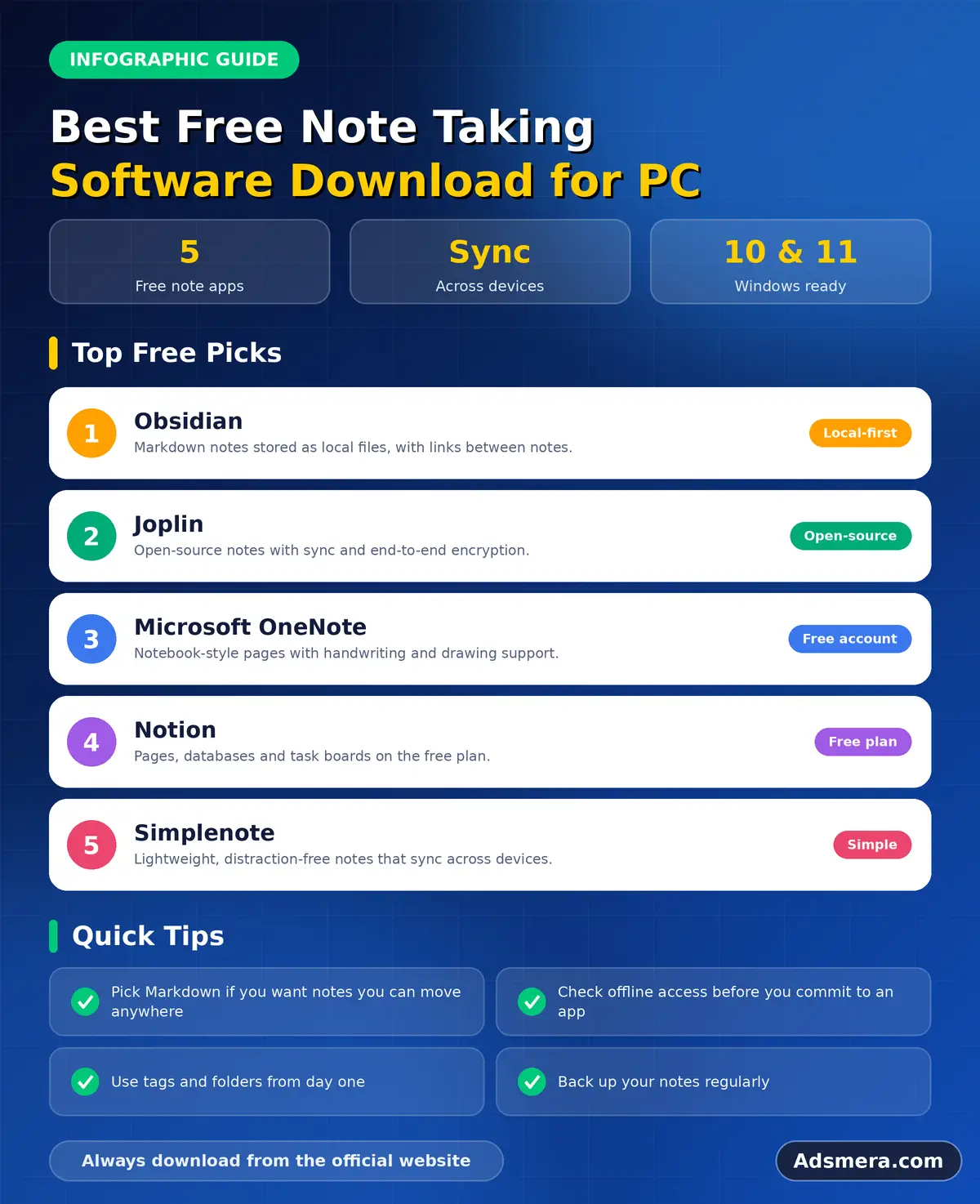
For most Windows users, OneNote is the easiest start, Obsidian and Logseq suit linked thinking, and Joplin is excellent for open source and privacy.
Choose a tool for your real workflow, capture quickly, review regularly and back up your notes. A simple system that you use every day beats a perfect one that you abandon.
FAQ
What is the best free note taking software for PC?
OneNote is easiest for most people. Obsidian and Logseq are strong for linked notes, and Joplin is a good open source option with encryption.
Can I use note apps offline?
Yes. Obsidian, Joplin and Logseq store notes locally, and OneNote can keep an offline copy. Check the settings of each app.
Is Obsidian free?
Obsidian is free for personal use. Check the official site for current terms about commercial use and paid sync.
How do I move notes between apps?
Use the export feature to markdown, HTML or PDF. Plain text and markdown apps make moving easiest.
Should I store passwords in my notes?
No. Use a dedicated password manager instead of a note app.
note, taking, software, download