Build a safe, free software toolkit for Windows 10 & 11 and explore our complete directory of PC software guides, from video editing to security.
Setting up a new Windows 11 PC feels great for about ten minutes. Then you realise it needs software.
The choice is huge. Hundreds of free tools promise to do everything, and many of them quietly install extras you never asked for.
This guide gives you a short, practical list of free programs that are worth your time. It also explains how to pick them and install them without trouble.
It is written for everyday users, students, freelancers and small offices who simply want a clean and useful computer.
What free really means
Not every free program is free in the same way. Knowing the difference saves you from surprises later.
- Freeware: free to use, but the source code is closed.
- Open source: free to use, and the code is public so anyone can inspect it.
- Freemium: a free version with limits, plus a paid upgrade.
- Trial: free for a short time, then you must pay.
Open source and freeware are usually the safest long term picks. Freemium is fine when the free version covers your needs.
Trials are a test drive, not free software. Treat them that way.
How to judge a program before you install it
A few quick checks will filter out most bad choices. They take less than two minutes.
First, find the official website. Search for the program name and look for the developer's own domain, not a download portal.
Second, look at how recently it was updated. A tool that has not changed in years may not work well on Windows 11.
Third, read recent reviews and community threads. Real users mention problems quickly.
Finally, check what the installer offers. Untick every extra toolbar, browser or "recommended" app.
The core toolkit every Windows 11 PC needs
Windows 11 already includes a lot. Start with what you have, then add only what is missing.
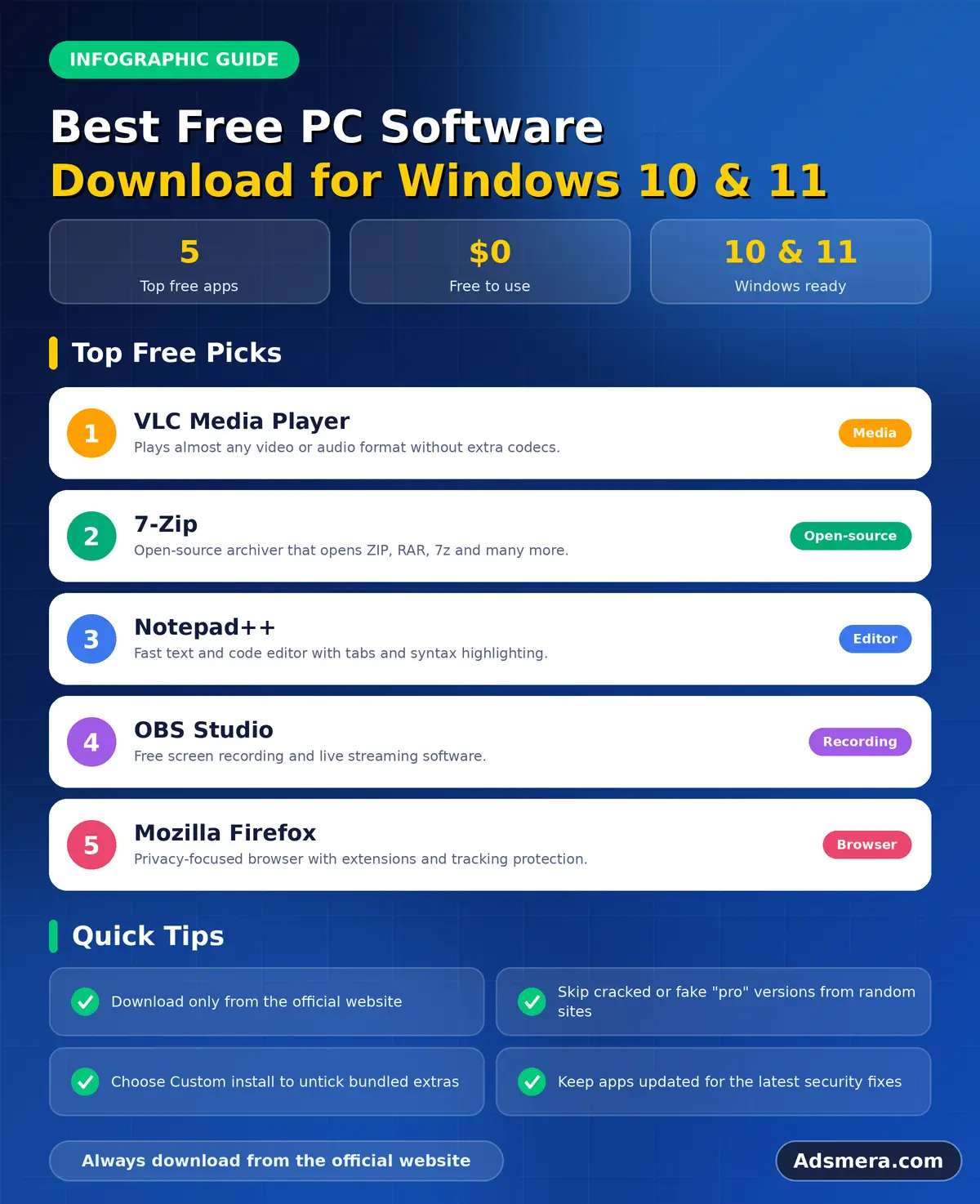
A good browser is the first install for most people. Firefox, Chrome and Edge are all solid, and Edge is already there.
A universal media player comes next. VLC plays almost every audio and video format without extra codecs.
An archive tool is also useful. 7-Zip opens ZIP, RAR, 7z and many other formats, and it is free and open source.
Finally, add a PDF reader if you do not like the one in your browser. Many people simply use Edge or Firefox for this.
Free software for work and study
Office work is where free tools shine. You can run a full setup without paying anything.
LibreOffice gives you a word processor, spreadsheet and presentation tool. It opens most Microsoft Office files.
For notes, Microsoft OneNote is free and syncs with your account. Joplin and Obsidian are popular alternatives for people who like plain files.
Notepad++ is a fast text and code editor. It is a favourite for quick edits and light programming.
For video calls and chat, Microsoft Teams, Zoom and Google Meet all have free tiers that work well for small groups.
Free creative tools
You do not need a subscription to start creating. Several free programs are genuinely capable.
GIMP and Krita handle image editing and digital painting. Paint.NET is lighter and easier for quick fixes.
Audacity records and edits audio. It is open source and has been a standard for years.
For video, Shotcut, Kdenlive and DaVinci Resolve all offer free versions. Resolve is the most powerful but also the most demanding.
Blender is a free 3D suite used for modelling, animation and rendering. It has a steep learning curve but huge community support.
Free utilities that make Windows nicer
Small utilities often improve daily life more than big applications.
Microsoft PowerToys adds handy tools such as a quick launcher, window layouts and a bulk file renamer. It comes from Microsoft and is open source.
Everything, from voidtools, searches file names almost instantly. It is far faster than the default search for local files.
ShareX is a flexible screenshot and screen capture tool. It can save, upload and annotate in one step.
TreeSize Free or WizTree show you which folders eat your disk space. They help when your drive is nearly full.
Security essentials
Windows 11 ships with Microsoft Defender, and it is a capable antivirus for most people. You do not have to add a second one.
What you should add is a password manager. Bitwarden and KeePassXC are both well regarded.
Turn on Windows Update and keep it running. Most attacks use known flaws that updates already fix.
Use a standard account for daily work if you can. It limits the damage if something goes wrong.
Safe installation on Windows 11
Windows 11 includes a package manager called winget. It installs programs from a trusted catalogue with one command.
For example, open Terminal and run a command such as winget install VideoLAN.VLC. The tool downloads and installs the app for you.
This approach skips fake download buttons and many bundled extras. It is a great habit for new setups.
If you prefer a normal installer, download it only from the official site. Check the file name and the digital signature if you are unsure.
Mistakes to avoid
Most software problems come from a few repeated mistakes.
- Installing five tools that do the same job.
- Clicking the big green button on a download page that is actually an advert.
- Running cracked or "full version" files from unknown sites.
- Leaving old programs installed and unused.
- Ignoring update prompts for months.
Cracked software is the worst of these. It is illegal, and it is a common way for malware to enter a PC.
There are legal free options for almost every task, as the sections above show.
A simple setup checklist
Use this order for a fresh Windows 11 installation.
- Run Windows Update until nothing is pending.
- Install your browser and sign in.
- Add a password manager and move your logins into it.
- Install media, archive and office tools.
- Add one creative tool for your main hobby or job.
- Set up a backup before you store important files.
Keep a short list of what you installed and why. It makes the next setup much faster.
Keep your software healthy
Installing is only half the job. Maintenance keeps the PC fast and safe.
Once a month, open Settings and review the installed apps list. Remove anything you no longer use.
Check that your key programs update themselves. Most modern tools do, but some need a manual nudge.
Restart the computer regularly. It clears temporary problems and completes pending updates.
Where to go next
If you want more detail on a specific job, read our other guides. Our article on free PC cleaner software for slow laptops helps when your PC feels sluggish.
If you are building a creative setup, start with free video editing software for Windows.
You can also browse the Windows software section on Adsmera for version details, file sizes and official links.
Free alternatives to popular paid apps
Many people pay for software only because they never looked for a free equivalent. Here are honest swaps that work well.
- Photoshop for everyday editing: GIMP or Krita.
- Microsoft Office for documents: LibreOffice, or the free web versions of Office.
- Illustrator for vector graphics: Inkscape.
- Premiere Pro for video: DaVinci Resolve, Shotcut or Kdenlive.
- Acrobat for simple PDF tasks: your browser, plus PDFsam Basic for merging and splitting.
- WinRAR for archives: 7-Zip or PeaZip.
These tools are not identical to the paid products. They do, however, cover the daily needs of most users.
If your work depends on a specific paid format, such as a client's project file, test compatibility first.
Software for students
Students need reliable, low cost tools. The good news is that free options are plentiful.
Use LibreOffice or Google Docs for essays. Add Zotero, a free reference manager, to handle citations and bibliographies.
For notes, OneNote or Obsidian keep everything searchable. Pair them with a cloud account so nothing is lost.
For maths and science, GeoGebra and Python with free editors are common choices.
Always check whether your school offers free licences. Many universities provide paid software at no cost.
Software for freelancers and small offices
A small business needs a handful of dependable tools, not a long list.
Start with a document suite, a password manager, a backup solution and a secure way to share files.
Add an accounting tool and a simple project board such as the free tier of Trello or similar services.
Keep a record of which licence terms apply. Some free programs forbid commercial use.
If you manage several PCs, consistency matters. Standardise on the same browser and tools for everyone.
Software for gamers
A gaming PC has its own short list of useful programs.
A game launcher such as Steam or the Epic Games Launcher manages your library and updates.
Discord is widely used for voice chat. OBS Studio records or streams gameplay.
For monitoring, HWiNFO shows temperatures and sensor data. MSI Afterburner can display frame rates and adjust fan curves.
Keep graphics drivers current, but download them from NVIDIA, AMD or Intel directly.
Free software for older PCs
An older computer needs lighter programs. Heavy tools make it feel slower than it is.
Pick lightweight options such as Notepad++, IrfanView, SumatraPDF and VLC. They start quickly and use little memory.
Avoid software that runs constantly in the background. Check the startup list in Task Manager and disable what you do not need.
Consider a browser with fewer extensions. Each extension uses memory.
Upgrading to an SSD is the single biggest speed boost for an older machine.
Privacy settings worth reviewing
New programs often ask for permissions during or after installation. Read the prompts rather than clicking through.
Open Settings, then Privacy and security, to review which apps use your camera, microphone and location.
Turn off diagnostic and advertising options you do not want. Windows lets you limit optional data sharing.
In each program, look for an option to disable usage statistics. Many offer it under general or advanced settings.
How to uninstall properly
Removing software cleanly keeps the system tidy.
Use Settings, then Apps, then Installed apps. Select the program and choose Uninstall.
Restart if the uninstaller asks. Some files can only be removed on reboot.
Do not delete a program folder by hand. That leaves entries behind and can cause errors.
Reviewing installed apps every few months prevents a slow build up of clutter.
Questions to ask before every install
Build a tiny habit. Before you add any new program, answer four questions.
Do I have a real task for it? Is there already a tool in Windows that does this?
Is the developer clearly named, with a website and a support page? Can I remove it cleanly later?
If two answers are weak, skip the download. A lean computer is faster and easier to protect.
Keep your toolkit light
Every extra program uses disk space, and many add background services. Over time they slow startup.
Review your list twice a year and remove duplicates. If you installed three PDF readers, keep one.
Prefer tools that update themselves quietly. They save you from hunting for patches and reduce risk.
When you try a program that disappoints you, uninstall it the same day. Forgotten leftovers are the main reason an old PC feels cluttered.
Our shortlist at a glance
If you want the quick version, this table lists a sensible starting set.
| Job | Free pick |
|---|---|
| Web browsing | Firefox, Chrome or Edge |
| Media playback | VLC |
| Archives | 7-Zip |
| Office work | LibreOffice |
| Passwords | Bitwarden or KeePassXC |
| Utilities | PowerToys and Everything |
Install these first. Add anything else only when a real need appears.
Review your list regularly
Set a reminder every few months to look at what is installed.
Remove tools you no longer use, and check that the ones you keep are still maintained. A short review prevents clutter from returning.
Our complete PC software guide directory
This page is the hub of our free PC software series. Each guide below goes deep on one job, and together they cover a full Windows setup.
Getting started
Begin here if you are setting up a new computer or want safer downloads.
- offline installers and full version downloads: learn what they are and how to verify a file.
Video editing
Everything about editing, converting and exporting video, even on older hardware.
- free video editing software for Windows: pick a free editor that fits your PC and skills.
- free video converter software for Windows PC: convert formats and shrink video files safely.
- free video editing software for an old PC: edit video smoothly on older hardware.
Photo and audio
Free tools for editing pictures and sound.
- free photo editing software for PC: GIMP, Krita, Paint.NET and raw editors compared.
- free audio editing software for PC: record, clean and export audio with free editors.
Screen recording
Capture lessons, bug reports and gameplay without watermarks.
- free screen recording software for Windows PC: compare the Game Bar, OBS Studio, ShareX and more.
- screen recording software with no watermark: record without watermarks or time limits.
PDF and office
Edit, convert and sign documents without paying for a premium suite.
- free PDF editor software for PC: annotate, merge, sign and fix PDF files.
- free PDF converter software for PC: convert PDF to Word, images and back.
Security and privacy
Protect your PC, your network and your passwords.
- free antivirus software for Windows 10: protection options and settings after Windows 10 support ended.
- free PC firewall software: use the Windows firewall and free add ons properly.
- free PC password manager software: store and protect your passwords for free.
PC cleanup and speed
Safe ways to make a slow computer feel fast again.
- free PC cleaner software for a slow laptop: a one hour rescue plan for a sluggish laptop.
- PC optimization software for gaming performance: tune drivers, settings and cooling for smoother games.
- free disk cleanup software for PC: free up storage safely with built in and free tools.
- PC performance boost software: safe steps that really make Windows faster.
- registry cleaner software for Windows PC: see why registry cleaners rarely help.
Backup and recovery
Keep your files safe and get them back when something goes wrong.
- free PC backup software: build a simple backup plan with the three two one rule.
- free data recovery software for PC: recover deleted files and know your limits.
System tools
Monitor your hardware, update drivers, compress files and run virtual machines.
- free system monitoring software for PC: watch temperatures, memory and disk health.
- driver update software: update drivers safely without risky tools.
- free file compression software for PC: compare 7-Zip, PeaZip and Windows built in tools.
- free PC virtualization software: run other systems in a virtual machine.
Remote access and family safety
Reach another computer securely and supervise family devices openly.
- free remote desktop software for PC: connect to another computer securely.
- free PC monitoring software for parents: supervise family computers openly and responsibly.
Productivity
Notes, typing practice and dictionaries for study and work.
- free note taking software for PC: choose a notes app that fits your workflow.
- free typing software for Windows PC: improve speed and accuracy with daily practice.
- offline dictionary software for PC: use dictionaries without an internet connection.
Final thoughts
The best free software is the software you actually need. A small, well chosen toolkit beats a crowded desktop every time.
Start with the basics, add tools only when a real task demands them, and always download from the official source.
Do that, and your Windows 11 PC will stay fast, tidy and secure for years.
FAQ
Is free software safe to install on Windows 11?
It can be, if you download it from the official website of the developer and decline any bundled extras. Avoid cracked files and unknown download portals.
Do I need a separate antivirus on Windows 11?
Most people are well protected by Microsoft Defender combined with Windows Update and sensible habits. A second real time antivirus is usually unnecessary.
What is the safest way to install many programs at once?
Use winget, the package manager built into Windows 11. It installs apps from a trusted catalogue without fake download buttons.
Are open source programs better than freeware?
They are often easier to trust because anyone can inspect the code, but quality varies. Judge each program by its reputation and update history.
How many programs should a new PC have?
Only as many as you use. A browser, media player, archive tool, office suite and password manager cover the needs of most users.
software, download, Windows